NAVIGATION SYSTEM (for DVD) > Voice is not Recognized |
| 1.CHECK NAVIGATION SETTING |
Display the "Voice Settings" screen.
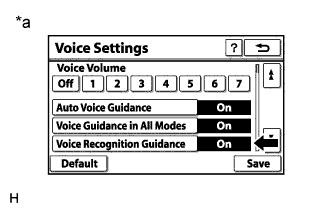 |
Check that "Voice Recognition Guidance" is not "Off".
| *a | Example |
|
| ||||
| OK | |
 |
| 2.CHECK MAP DISC |
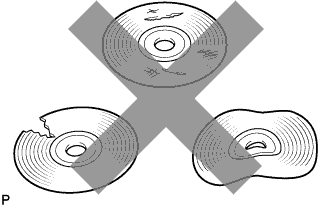 |
Check that the map disc is not deformed or cracked.
|
| ||||
| OK | |
|
| 3.CHECK MAP DISC |
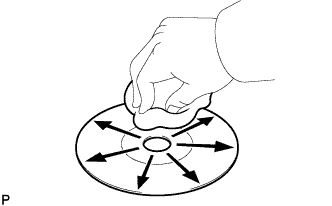 |
Check for dirt on the map disc surface.
|
| ||||
| OK | |
|
| 4.CHECK CABIN |
Check that condensation is not likely to occur in the cabin, and that the temperature is not high or extremely low in the cabin.
|
| ||||
| OK | |
|
| 5.CHECK MICROPHONE (OPERATION CHECK) |
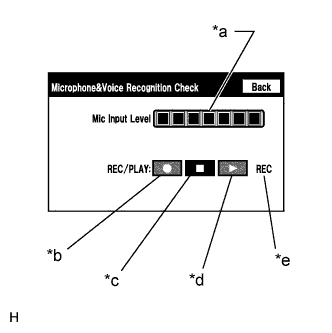 |
Enter the "Microphone & Voice Recognition Check" screen. Refer to Check Mic & Voice Recognition in Operation Check (Click here).
When voice is input into the microphone, check that the microphone input level meter changes according to the input voice.
Select the recording switch and perform voice recording.
Check that the recording indicator remains on while recording and that the recorded voice is played normally without noise or distortion.
| *a | Microphone Input Level Meter |
| *b | Recording Switch |
| *c | Stop Switch |
| *d | Play Switch |
| *e | Recording Indicator |
|
| ||||
| OK | ||
 | ||
| ||

