NAVIGATION SYSTEM (for HDD) > Switch Operation of Remote Touch not Accepted |
| 1.START DIAGNOSTIC MODE |
Activate diagnostic mode and check if the "Service Menu" screen can be displayed (Click here).
|
| ||||
| OK | |
 |
| 2.CHECK PANEL SWITCH (OPERATION CHECK) |
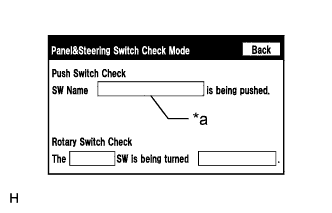 |
Enter the "Panel & Steering Switch Check Mode" screen. Refer to Check Panel & Steering Switch in Operation Check (Click here).
Press each switch on the remote touch and check that the switch name is displayed on the screen.
| *a | Name of switch being pushed |
|
| ||||
| OK | ||
 | ||
| ||
| 3.REMOTE TOUCH SELF CHECK (SWITCH OPERATION CHECK) |
Activate self check mode (Click here).
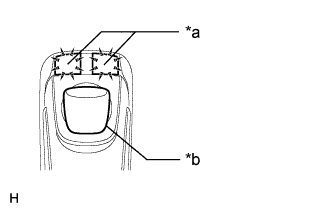 |
Check switch operation.
Move the remote touch switch knob to the lower left.
Check that the "MAP/VOICE" and "MENU" switches illuminate when each switch on the remote touch is pressed.
| Result | Proceed to |
| Self check mode cannot be activated. | A |
| Some switches do not turn on the "MAP/VOICE" and "MENU" switch illumination when they are pressed. | A |
| All switches turn on the "MAP/VOICE" and "MENU" switch illumination when they are pressed. | B |
| *a | Switch Illumination |
| *b | Switch Knob |
|
| ||||
| A | |
|
| 4.REPLACE INTEGRATION PANEL SUB-ASSEMBLY |
Replace the integration panel sub-assembly (Click here).
Check that each switch operation on the remote touch is accepted normally.
|
| ||||
| OK | ||
| ||
| ||


