NAVIGATION SYSTEM (for DVD) > Pointer does not Reach Screen Edge |
| 1.CHECK FOR FOREIGN OBJECT |
Check if there are any foreign objects around the remote touch switch knob that interfere with knob operation.
|
| ||||
| OK | |
 |
| 2.CHECK REMOTE TOUCH SWITCH (OPERATION CHECK) |
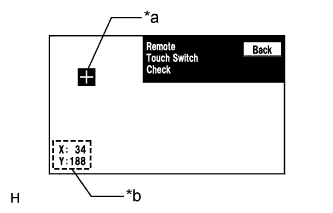 |
Enter the "Remote Touch Switch Check" screen. Refer to Check Remote Touch Switch in Operation Check (Click here).
Move the remote touch switch knob and press the "ENTER" switch at any blank space on the screen to display the "+" mark.
Move the pointer to any position using the remote touch switch knob and press the "ENTER" switch again. When the location of "+" mark is changed with the "ENTER" switch held, check that the coordinate values "X" and "Y" change between 0 and 255.
| Result | Proceed to |
| Remote touch switch check cannot be performed due to a remote touch switch knob malfunction. | A |
| The coordinate values "X" and "Y" do not change between 0 and 255 according to the location of "+" mark. | A |
| The coordinate values "X" and "Y" change between 0 and 255 according to the location of "+" mark. | B |
| *a | "+" mark |
| *b | Coordinates |
|
| ||||
| A | |
|
| 3.REMOTE TOUCH SELF CHECK (REMOTE TOUCH SWITCH KNOB POSITION RECOGNITION CHECK) |
Activate self check mode (Click here).
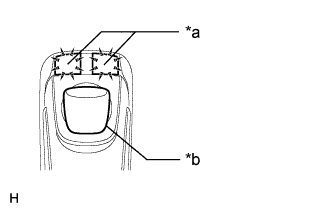 |
Check remote touch switch knob position recognition.
Move the remote touch switch knob from the lower left to the upper right to check that the brightness of the switch illumination changes.
| Result | Proceed to |
| Brightness of the switch illumination changes according to remote touch switch knob operation. | A |
| Brightness of the switch illumination does not change according to remote touch switch knob operation. | B |
| Switch illumination remains on. | B |
| *a | Switch Illumination |
| *b | Switch Knob |
|
| ||||
| A | ||
 | ||
| ||
| 4.REPLACE REMOTE OPERATION BOARD |
Replace the remote operation board (Click here).
Check that the pointer moves to the edge of the screen.
|
| ||||
| OK | ||
| ||
| ||


