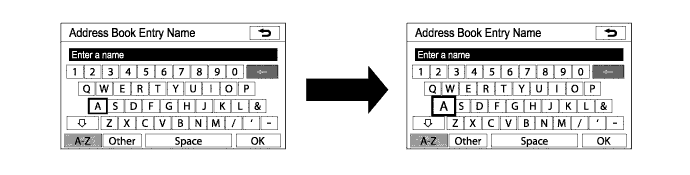
Navigation Screen
The navigation ECU calculates the present position, direction of travel, determines a route and calculates the driving distance based on the following information sources.
- Map data in the HDD*1
- DVD Map data*2, *3
- Global Positioning System (GPS) satellites
- Built-in gyro sensor
- Vehicle speed signal
- Reverse signal
- Radio Data System Traffic Message Channel (RDS-TMC) Signal*1, *3
*1: Models for Europe
*2: Models for G.C.C. Countries and destination package for Australia
*3: Destination package for ThailandThe functions of the navigation screen are listed below.
Item Function Map Display Map Color Change Depending on the position of the light control switch, the screen changes to day mode or night mode. Taillight-interlocked Map Color Change Changes the color of the map screen that is displayed when the taillights are turned on. North Up / Heading Up - If North Up is selected, regardless of the direction of vehicle travel, north is always up.
- If Heading Up is selected, the direction of vehicle travel is always up.
Multi-step Scale Display Changes the map scale in 14 steps. Direct Scale Change Directly selects and displays the map scale. Street Name Indication on Scrolled Map Displays the street name and city name even when the map screen is being scrolled. Stepless Scale Display Changes the scale of the map from the basic 14 steps to an even finer range. Footprint Map Displays a map on a scale of 25 m (75 feet). (for areas with footprint map coverage.) Building Tenant Information Displays information on the tenants in a building. (for Footprint Map Areas) Road Number Sign Board Display Displays the road number on the map. Point Of Interest Display Displays selected types of points of interest as marks on the map. 3D Display
(Models for Europe and G.C.C. Countries and destination package for Thailand)Displays a 3-dimensional (3D) view of the map. Split-view Display Displays different modes on a screen that is split into 2 views. Compass Mode Screen Displays the direction of travel and detailed data of the present location. On-route Scroll (Route Preview)
Destination Package for AustraliaScrolls the center of the cursor forward and backward constantly along the route. Route Trace It is possible to store up to the last 124 miles (200 km) of a traveled route and retrace the route on the display. RDS-TMC Display
(Models for Europe and Destination Package for Thailand)Displays RDS-TMC icons, arrows and indicators when RDS-TMC service is being received. Destination Search Preset Destination Memory Search Sets a pre-registered point as a destination point while driving. Address Search (Models for Europe and destination package for Thailand) A destination can be set in 2 ways: - Information can be input in the order of: street name, town and house number.
- Information can be input in the order of: town or postal code, street name and house number.
(Models for G.C.C. Countries) A destination can be set in 2 ways: - Information can be input in the order of: street name, city and house number
- Information can be input in the order of: city, street name and house number
(Destination package for Australia) A destination can be set in 2 ways: - Information can be input in the order of: city name, street address and house number.
- Information can be input in the order of: house number, street address and city name.
Hybrid Point of Interest Search Narrows the search by names of the point of interest, category and areas. Previous Destination Search Stores the coordinates, names, and date of up to 100 locations that have been set as destinations in the past. Address Book (Memory Point) Search Sets a destination from the registered Address Book (Memory Point). Emergency Search Performs a specific search for police stations hospitals dealers, and fire stations. Intersection Search By specifying 2 streets, the point at which they intersect is set as the destination point. Motorway (Highway, Freeway) Entrance or Exit Search
(Models for Europe and G.C.C. Countries and Destination package for Australia)Searches for the destination by the name of the street that connects to a motorway (highway, freeway) entrance or exit. Map Search A destination can be set by scrolling the cursor on the map. Coordinate Search A destination can be input by entering its coordinates. Phone Number Search
(Models for Europe and G.C.C. Countries and destination packages for Thailand)A destination can be input by entering its phone number. Voice-recognition Search
(Models for Europe)A destination can be set up by voice command input. Route Search Multiple Destination Setting Sets multiple destinations. It can also rearrange the sequence of the destinations. Multiple Route Search Searches for multiple routes. Search Condition Designation Searches for the recommended, alternative, and shortest routes. Detour Search Changes the route to detour around a section of the route. Regulated Road Consideration Performs searches which consider regulated roads. Avoidance Area Searches for a route that avoids a designated area. Adjacent Road Search
(Destination Package for Australia)Searches for a route adjacent to the current road. Auto Avoid Traffic Search
(Models for Europe and Destination Package for Thailand)Automatically changes to another route to avoid heavy congestion. Guidance Voice Guidance Provides voice guidance about the distance and the direction of travel to a destination point based on road conditions and vehicle speed. Rotary Guidance Provides guidance with a special voice phrase in a rotary (traffic circle). Next Turn Guidance Provides guidance about the distance to the next turn and indicates the direction of the turn using an arrow. Motorway (Highway, Freeway) Mode Display
(Models For Europe, G.C.C. Countries and destination package for Australia and Thailand)Displays the distance to the next junction and exit, or POIs in the vicinity of the freeway (highway) exit. Freeway Direction of Travel Display Displays the direction of travel to take on the freeway (highway). Freeway Shield Icon Display Freeway shield icons will be displayed on the 3D guidance screen. Intersection Zoom-in Display Zooms in the image when approaching an intersection. Turn List Display Displays a turn list on the right side of the 2-screen display. Arrow Display Displays the direction of the next turn and the distance to the turn on the right side of the2-screen display. Distance Display Destination Displays the distance from the present location to the destination. Estimated Arrival Time Display Displays estimated arrival time. Off-route Arrow Display Displays the route ahead on the route guidance line in case of being off the route during the guidance. Others Voice Recognition
(Models for Europe)Recognizes pre-programmed system commands spoken to operate the navigation system. Help Explains what operation can be performed when a "?" on the display is selected. - If North Up is selected, regardless of the direction of vehicle travel, north is always up.
Information Screen
The functions of the information/Phone screen display are listed below.
Item Function Hands-free Phone Enter a Bluetooth Phone A maximum of 4 Bluetooth-compatible cellular telephones can be registered. In addition, connection with automatically registered Bluetooth-compatible cellular phone is available. Call and Receive on the Bluetooth Phone The following methods are available to make a call: - By Dial
- By Phonebook
- By Speed Dial
- By Call History
- By Voice Recognition
- By Point of Interest Search (POI) Call
- Talk on the phone
- Adjust the volume
- Hang up the phone
- Mute voice
- Transfer the call
Fuel Consumption Fuel Consumption Information Information about fuel consumption per minute or per trip can be displayed. Calendar Calendar
(Destination Package for Australia)The current date is highlighted in yellow. Calendar with Memo
(Models for Europe and G.C.C. Countries)- The current date is highlighted in yellow.
- It is possible to enter memos for particular dates on the calendar.
Map Map Coverage Information Display Displays the map area that is recorded in the HDD, or on the DVD. - By Dial
The fuel consumption screen is displayed as illustrated below. This screen has the display functions listed below.
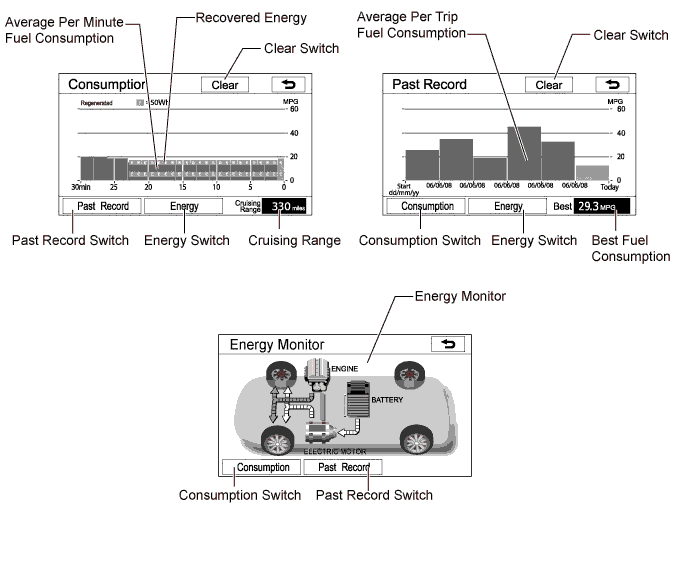
Item Outline Clear Switch Clears all past information. Average Per Minute Fuel Consumption - Displays the value that has been calculated by the combination meter, which is based on the driven distance and the volume of fuel consumed (fuel injection signal from No. 1 injector), provided that the power switch is on (IG).
- Displays the average fuel consumption for the last minute, or since clear was last selected.
Past Record Switch Changes to the Past Record (per trip) fuel consumption screen. Cruising Range Displays approximate drivable distance. Average Per Trip Fuel Consumption - Displays the current record and the last 5 average per trip fuel consumption records or the current record and those since clear was last selected.
- Starts to calculate the average fuel consumption when the average fuel consumption value displayed in the multi-information display of the combination meter assembly is reset.
Consumption Switch Displays the screen for per minute fuel consumption. Best Fuel Consumption Displays the best (most economical) per trip fuel consumption. Recovered Energy - Indicates the recovered energy for 1 minute with "E" symbols.
- The recovered energy status is calculated by the power management control ECU.
Energy Switch Displays the energy monitor. Energy Monitor Indicates the energy transmission direction, making it possible to confirm the current drive method (engine, motor or both), the power generation status by the engine and status of regenerative energy use. - The State Of Charge (SOC) of the battery can be checked on the meter. The meter shows the SOC in 8-levels, and is provided below the illustration of the battery.
- Displays the energy monitor status that has been calculated by the power management control ECU.
- Displays the value that has been calculated by the combination meter, which is based on the driven distance and the volume of fuel consumed (fuel injection signal from No. 1 injector), provided that the power switch is on (IG).
Setup Screen
The settings for functions of the multi-display assembly are available from the setup screen.
Item Function General Setting - The language can be selected. (Models for Europe and destination package for Thailand)
- The beep sound can be turned off.
- Voice recognition language can be selected. (Models for Europe)
- Selecting automatic screen change from audio to map after audio controls are operated.
- Keyboard layout can be changed.
- Distance unit can be changed. (Models for Europe)
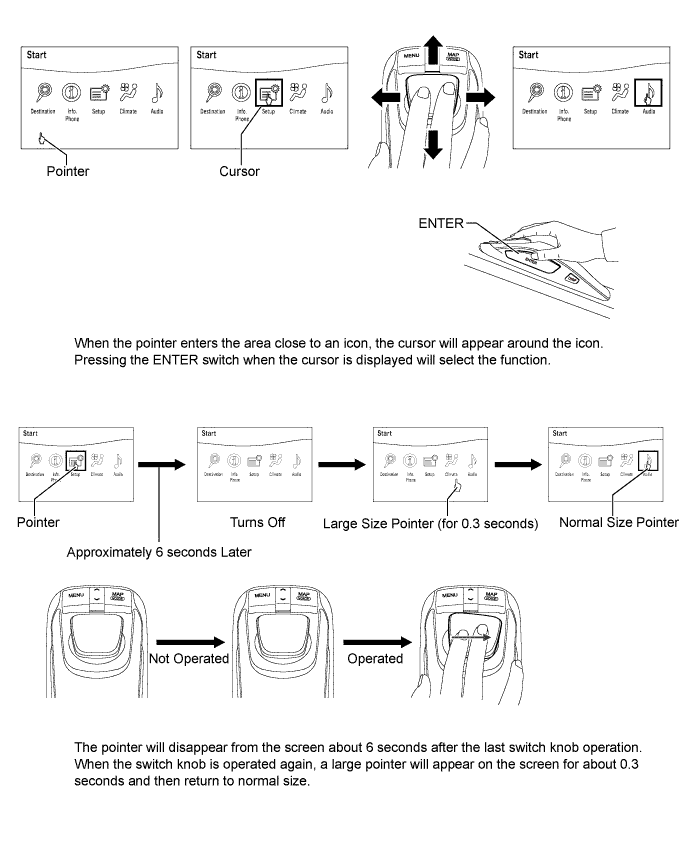
- Pointer sound can be set.
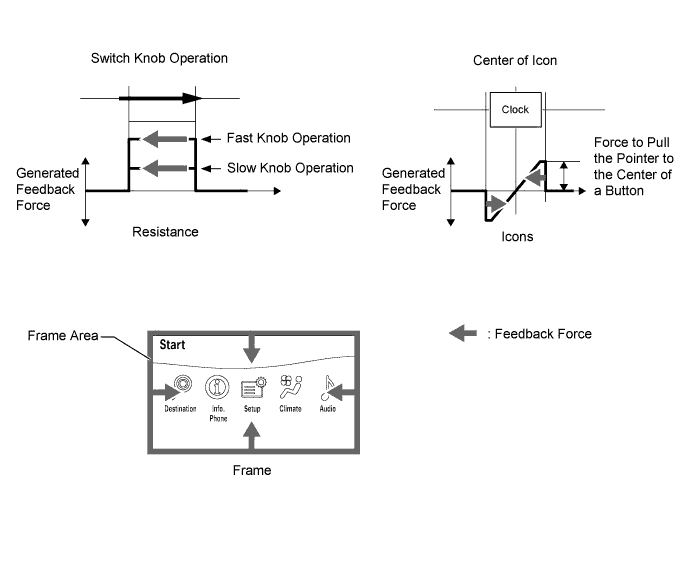
- Pointer feedback force can be set.
- Pointer shape can be set.
- Pointer size can be set.
- Registered information (personal data) can be cleared.
Clock Setting - The time zone can be set. (Models for Europe, G.C.C. Countries and destination package for Australia)
- Used for changing time zones and the on/off settings of daylight saving time. (Models for Europe, G.C.C. Countries and destination package for Australia)
- Automatic adjustment of time using GPS time information can be set. (Models for G.C.C. Countries and destination package for Thailand)
Voice Setting - The voice guidance volume can be adjusted or switched off.
- Voice guidance during route guidance can be set.
- Voice guidance while using the audio system can be set.
- Voice recognition talkback can be set.
- Voice guidance of the traffic information function can be set. (Models for G.C.C. Countries)
Navigation Setting The Navigation Settings can be used to: - Set up Home. (Destination package for Australia)
- Set up Preset Destinations. (Destination package for Australia)
- Set up the Address book (Destination package for Australia)
- Set up Areas to Avoid.
- Delete previous destinations. (Destination package for Australia)
- Set detailed navigation settings such as:
- Average cruising speed
- Displayed POI icon categories
- Display of 3D landmarks (Models for Europe)
- Buttons displayed on the map screen when "OFF" is selected
- Manual adjustment of the current vehicle position mark
- Display of pop-up messages
Phone Setting
(Models for Europe and destination package for Australia)- Voice and ring volume adjustment.
- Initial registration and settings for a Bluetooth phone.
- Setting the phonebook.
- Information on a registered Bluetooth phone can be displayed and the settings can be changed.
- Detailed phone settings can be set.
Audio Setting - Sound quality can be adjusted.
- A Bluetooth audio device can be registered.
- A registered Bluetooth compatible portable player can be selected.
Vehicle Setting - Settings can be changed for the following maintenance items:
- Engine Oil
- Oil Filter
- Rotation
- Tires / TYRES
- Battery
- Brake Pad
- Wiper
- Coolant / LLC
- Brake Oil
- Trans. Fluid / AT Fluid
- Service
- Air filter
- Personal
- Customizable vehicle settings can be changed.
- The language can be selected. (Models for Europe and destination package for Thailand)