NAVIGATION SYSTEM > DISPLAY CHECK MODE |
| COLOR BAR CHECK |
Enter diagnostic mode (Click here).
 |
Select "Display Check" from the "Diagnosis MENU" screen.
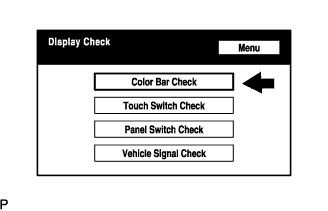 |
Select "Color Bar Check" from the "Display Check" screen.
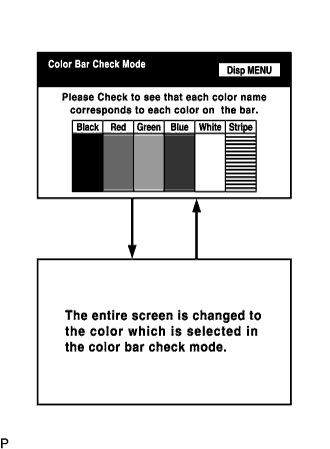 |
Select a color bar from the "Color Bar Check Mode" screen.
| TOUCH SWITCH CHECK |
Enter diagnostic mode (Click here).
|
Select "Display Check" from the "Diagnosis MENU" screen.
 |
Select "Touch Switch Check" from the "Display Check" screen.
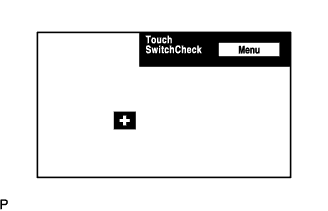 |
Touch the display anywhere in the open area to perform the check when the "Touch Switch Check" screen is displayed.
| PANEL SWITCH CHECK |
Enter diagnostic mode (Click here).
|
Select "Display Check" from the "Diagnosis MENU" screen.
 |
Select "Panel Switch Check" from the "Display Check" screen.
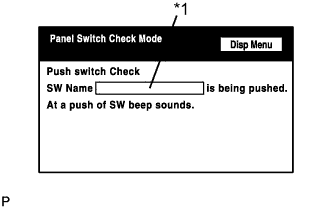 |
Operate each switch and check that the switch name and condition are correctly displayed.
| Display | Contents |
| Push switch name / *1 |
|
| VEHICLE SIGNAL CHECK |
Enter diagnostic mode (Click here).
|
Select "Display Check" from the "Diagnosis MENU" screen.
 |
Select "Vehicle Signal Check" from the "Display Check" screen.
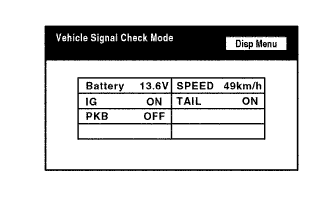 |
When the "Vehicle Signal Check Mode" screen is displayed, check all the vehicle signal conditions.
