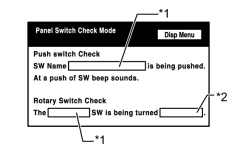
- Name of the operated switch is displayed.
| Last Modified: 11-27-2007 | 1.6 D | |
| Service Category: Audio/Visual/Telematics | Section: Audio/Video | |
| Model Year: 2008 | Model: LX570 | Doc ID: RM000003A3N006X |
| Title: AUDIO / VIDEO: AUDIO AND VISUAL SYSTEM: OPERATION CHECK (2008 LX570) | ||
OPERATION CHECK
1. Check Display Check mode
HINT:
- This mode checks the color display on the multi-display.
- Illustrations may differ from the actual vehicle depending on the device settings and options. Therefore, some detailed areas may not be exactly the same as on the actual vehicle.
(a) Enter diagnostic mode
 .
.
|
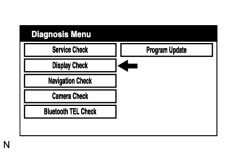
(b) Select "Display Check" from the "Diagnosis Menu" screen. |
(c) Color Bar Check
|
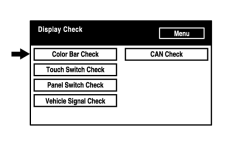
(1) Select "Color Bar Check" from the "Display Check" screen. |
|
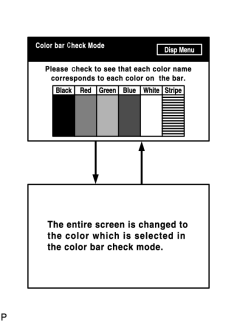
(2) Select a color bar from the "Color bar Check Mode" screen. |
(3) Check the display color.
HINT:
- The entire screen turns to the color or stripe selected.
- Touch the display to return to the "Color Bar Check Mode" screen.
(d) Touch Switch Check
|
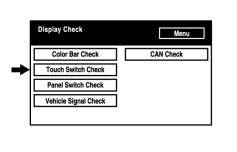
(1) Select "Touch Switch Check" from the "Display Check" screen. |
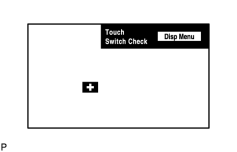
(2) Touch the display anywhere in the open area to perform the check when the "Touch Switch Check" screen is displayed.
HINT:
A "+" mark is displayed where the display is touched.
(e) Panel Switch Check
|
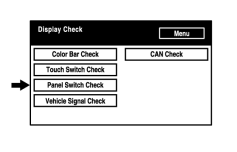
(1) Select "Panel Switch Check" from the "Display Check" screen. |
|
(2) Operate each switch and check that the switch name and condition are correctly displayed.
|
(f) Vehicle Signal Check
|
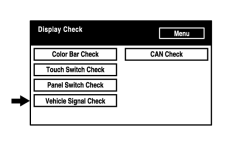
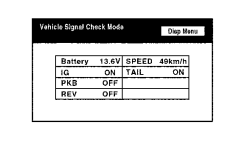
(1) Select "Vehicle Signal Check" from the "Display Check" screen. |
|
(2) When the "Vehicle Signal Check Mode" screen is displayed, check all the vehicle signal conditions. HINT:
|
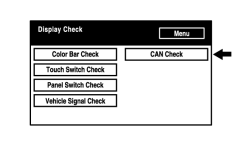
(g) CAN Check
|
(1) Select "CAN Check" from the "Display Check" screen. |
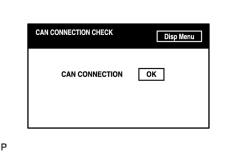
|
(2) Check the CAN CONNECTION CHECK result.
|
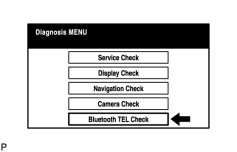
2. Check "Bluetooth" TEL Check
HINT:
Illustrations may differ from the actual vehicle depending on the device settings and options. Therefore, some detailed areas may not be exactly the same as on the actual vehicle.
(a) Enter diagnostic mode
.
|
(b) Select ""Bluetooth" TEL Check" from the "Diagnosis MENU" screen. |
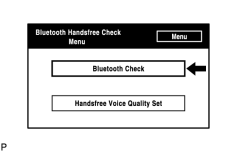
(c) "Bluetooth" Check
|
(1) Select ""Bluetooth" Check" from the ""Bluetooth" Handsfree Check Menu" screen. |
|
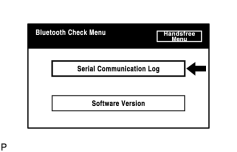
(2) Select "Serial Communication Log" from the ""Bluetooth" Check Menu" screen.
|
|
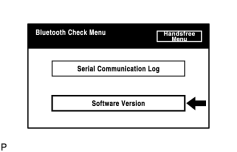
(3) Select "Software Version" from the ""Bluetooth" Check Menu" screen.
HINT:
This function is controlled by the display and navigation module display. |
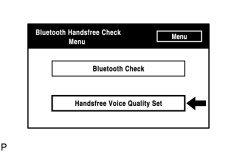
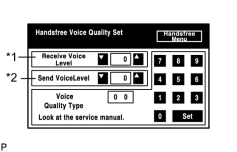
(d) Handsfree Voice Quality Set
|
(1) Select "Handsfree Voice Quality Set" from the ""Bluetooth" Handsfree Check Menu" screen. |
|
(2) Check the handsfree voice level.
HINT:
This function is controlled by the display and navigation module display. NOTICE:
"Voice Quality Type" should not be changed. |

|

|