| Last Modified: 11-27-2007 | 1.6 D | |
| Service Category: Audio/Visual/Telematics | Section: Park Assist/Monitoring | |
| Model Year: 2008 | Model: LX570 | Doc ID: RM000003EB4000X |
| Title: PARK ASSIST / MONITORING: WIDE VIEW FRONT MONITOR SYSTEM: DTC CHECK / CLEAR (2008 LX570) | ||
DTC CHECK / CLEAR
HINT:
- Illustrations may differ from the actual vehicle depending on the device settings and options. Therefore, some detailed areas may not be exactly the same as the actual vehicle.
-
If the system cannot enter the diagnostic mode, inspect all AVC-LAN communication components and repair or replace problem parts
 .
.
- After turning the engine switch on (IG) and before entering diagnostic mode, check that the air conditioning can be operated on the display screen. Otherwise, some items cannot be checked.
1. START DIAGNOSTIC MODE
(a) Start the engine.
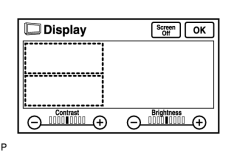
(b) Switch to the "Display Check" screen.
|
(c) From the display quality adjustment screen, touch the corners of the screen in the following order: upper left → lower left → upper left → lower left → upper left → lower left. |
(d) The diagnostic mode starts and the "Diagnosis Inspection" screen will be displayed. Service inspection starts automatically and the result will be displayed.
2. FINISH DIAGNOSTIC MODE
(a) Turn the engine switch off.
3. DIAGNOSIS MENU
|
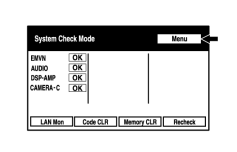
(a) Press the "Menu" button on the "System Check Mode" screen. |
|
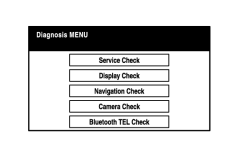
(b) The "Diagnosis MENU" screen will be displayed. |
4. CHECK DTC
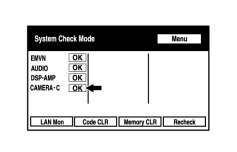
(a) Read the system check result.
|
(1) If the check result is "EXCH", "CHEK" or "Old", touch the displayed check result. |
|
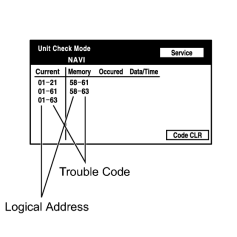
(2) View the results on the "Unit Check Mode" screen and record them. HINT:
|
|
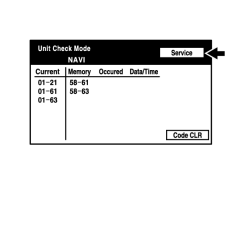
(3) When proceeding to view the results of another device, press the "Service" button. |
|
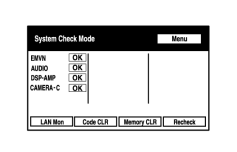
(4) Return to the "System Check Mode" screen. Repeat the steps above to read the other results of the system check. |
5. DTC CLEAR / RECHECK
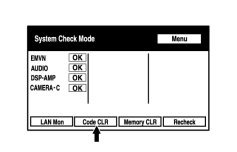
(a) Clear DTCs
|
(1) Press the "Code CLR" switch for 3 seconds. |
(2) The check results are cleared.
(b) Recheck
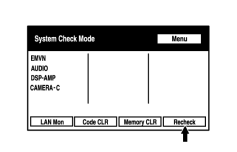
|
(1) Press the "Recheck" button. |
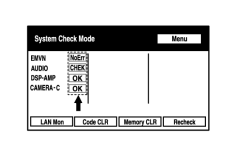
|
(2) Confirm that all diagnostic codes are "OK" when the check results are displayed. If a code other than "OK" is displayed, troubleshoot again. |
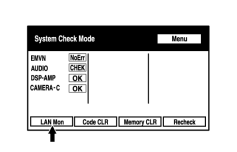
|
(3) Press the "LAN Mon" button to change to the "LAN Monitor" screen. |
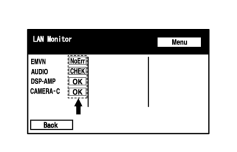
|
(4) Confirm that all diagnostic codes are "No Err". If a code other than "No Err" is displayed, troubleshoot again. |

|

|