|
|
By operating the multivision display by means of the touchscreen, you can activate or deactivate the pairing with a Bluetooth® device.
|
|
|
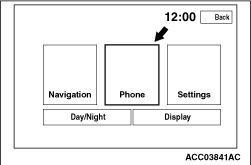
1.Press "MENU" button to display the menu screen.
|
|
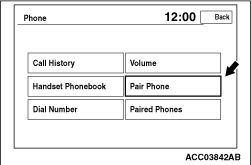
2.Press "Phone" button to display the "Phone" screen.
|
|
3.Press "Pair Phone" button.
4.Search a valid Bluetooth® device by operating it. Select "Car-Navi" on the search result, and then press "OK" button.
| note |
For how to operate a Bluetooth® device, follow manufacturer’s instructions.
|
5.Follow instructions on the multivision display to press "YES" button.
6.On completion, "XXXX (Bluetooth® device description) paired as 1 (Paring number)" will be displayed.
|
|
|
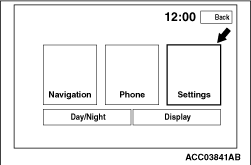
1.Press "MENU" button to display the menu screen.
|
|
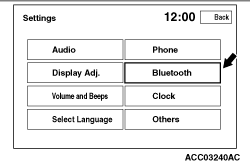
2.Press "Settings" button to display the "Settings" screen.
|
|
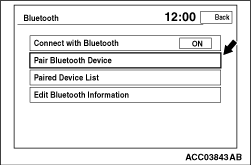
3.Press "Bluetooth" button to display the "Bluetooth" screen.
|
|
4.Press "Pair Bluetooth Device" button.
5.Search a valid Bluetooth® device by operating it. Select "Car-Navi" on the search result, and then press "OK" button.
| note |
For how to operate a Bluetooth® device, follow manufacturer’s instructions.
|
6.Follow instructions on the multivision display to press "YES" button.
7.On completion, "XXXX (Bluetooth® device description) paired as 1 (Paring number)" will be displayed.
|
|
|
1.Press "MENU" button to display the menu screen.
|
|
2.Press "Settings" button to display the "Settings" screen.
|
|
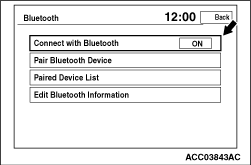
3.Press "Bluetooth" button to display the "Bluetooth" screen.
|
|
4.Select "ON" or "OFF" on "Connect with Bluetooth" item to deactivate/activate the paring.
|
)
)
)
)
)
)