SYSTEM DESCRIPTION
Troubleshooting · Vehicles built from Jun 2009
| DISC PLAYER OUTLINE |
A CD player uses a laser pickup to read digital signals recorded on CDs. By converting the digital signals to analog, music and other content can be played.
- CAUTION:
- Do not look directly at the laser pickup because the CD player uses an invisible laser beam. Be sure to operate the player only as instructed.
- NOTICE:
- Do not disassemble any part of the CD player.
- Do not apply oil to the CD player.
- Do not insert anything but a CD into the CD player.
- Do not disassemble any part of the CD player.
Usable discs
The CD player can only play audio CDs, CD-Rs (CD-Recordable) and CD-RWs (CD-ReWritable) that have any of the following marks:
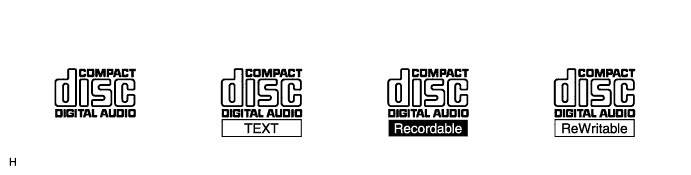

Precautions for use of discs
- NOTICE:
- Copy-protected CDs cannot be played.
- CD-Rs and CD-RWs may not be played depending on the recording conditions or characteristics of the discs, or due to damage, dirt or deterioration caused by leaving the discs in the cabin for a long time.
- Unfinalized CD-Rs and CD-RWs cannot be played.
- Keep the discs away from dirt. Be careful not to damage the discs or leave your fingerprints on them.
- Hold discs by the outer edge and center hole with the label side up.
- Leaving the disc exposed halfway out of the slot for a long time after pressing the disc eject button may cause deformation of the disc, making the disc unusable.
- If discs have adhesive tape, stickers, CD-R labels or any traces of such labels attached, the discs may not be ejected or player malfunctions may result.
- Keep the discs away from direct sunlight. (Exposure to direct sunlight may cause deformation of the disc, making the disc unusable.)
- Do not use odd-shaped CDs because these may cause player malfunctions.
- Do not use discs whose recording portion is transparent or translucent because they may not be inserted, ejected or played normally.
- Copy-protected CDs cannot be played.
- HINT:
- When it is cold or it is raining, if the windows mist up, mist and condensation may form in the player. In such cases, the CD sound may skip or stop in the middle of play. Ventilate or dehumidify the cabin for a while before using the player.
- The CD sound may skip if the player experiences strong vibrations when the vehicle is driven on rough roads or similar uneven surface(s).
- When it is cold or it is raining, if the windows mist up, mist and condensation may form in the player. In such cases, the CD sound may skip or stop in the middle of play. Ventilate or dehumidify the cabin for a while before using the player.
Cleaning
- NOTICE:
- Do not use a lens cleaner because it may cause a malfunction in the pickup portion of the player.
If dirt is on the disc surface, wipe it clean with a soft dry cloth such as an eyeglass cleaner for plastic lenses from the inside to the outside in a radial direction.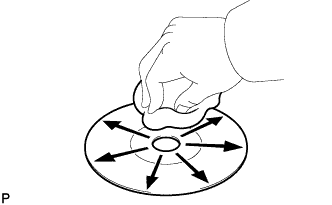
- NOTICE:
- Pressing on the disc by hand or rubbing the disc with a hard cloth may scratch the disc surface.
- Use of solvent such as a record spray, antistatic agent, alcohol, benzine and thinner, or a chemical cloth may cause damage to the disc, making the disc unusable.
- Pressing on the disc by hand or rubbing the disc with a hard cloth may scratch the disc surface.
| MP3/WMA OUTLINE |
Playable MP3 file standards
Compatible standard
MP3 (MPEG1 LAYER3, MPEG2 LSF LAYER3)
Compatible sampling frequency
- MPEG1 LAYER3: 32, 44.1, 48 (kHz)
- MPEG2 LSF LAYER3: 16, 22.05, 24 (kHz)
Compatible bit rate
- MPEG1 LAYER3: 64, 80, 96, 112, 128, 160, 192, 224, 256, 320 (kbps)
- MPEG2 LSF LAYER3: 64, 80, 96, 112, 128, 144, 160 (kbps)
- Compatible with VBR
Compatible channel mode
Stereo, joint stereo, dual channel, monaural
- MPEG1 LAYER3: 32, 44.1, 48 (kHz)
Playable WMA file standards
Compatible standard
WMA Ver. 7, 8 and 9
Compatible sampling frequency
32, 44.1, 48 (kHz)
Compatible bit rate
(only compatible with 2-channel playback)
- Ver. 7, 8: CBR48, 64, 80, 96, 128, 160, 192 (kbps)
- Ver. 9: CBR48, 64, 80, 96, 128, 160, 192, 256, 320 (kbps)
- Ver. 7, 8: CBR48, 64, 80, 96, 128, 160, 192 (kbps)
ID3 tag and WMA tag
Additional textual information called ID3 tag can be input to MP3 files. Information such as song titles and artist names can be stored.
- HINT:
- This player is compatible with the ID3 tags of ID3 Ver. 1.0 and 1.1, and ID3 Ver. 2.2 and 2.3. (Number of characters complies with ID3 Ver. 1.0 and 1.1.)
Additional textual information called WMA tag can be input to WMA files. Information such as song titles and artist names can be stored.
Usable media
Only CD-ROMs, CD-Rs (CD-Recordable) and CD-RWs (CD-ReWritable) can be used to play MP3/WMA files.
- NOTICE:
- CD-Rs and CD-RWs are more easily affected by a hot and humid environment than discs used for normal audio CDs. For this reason, some CD-Rs and CD-RWs do not play.
- If there are fingerprints or scratches on a disc, the disc may not play or the CD sound may skip.
- Some CD-Rs and CD-RWs may deteriorate if they are left in the cabin for a long time.
- Keep CD-Rs and CD-RWs in an opaque case.
- CD-Rs and CD-RWs are more easily affected by a hot and humid environment than discs used for normal audio CDs. For this reason, some CD-Rs and CD-RWs do not play.
Usable media format
Usable media format
Disc format
CD-ROM Mode 1, CD-ROM XA Mode 2 Form1
File format
ISO9660 Level 1 and Level 2 (Joliet, Romeo)
- HINT:
- As for MP3/WMA files written in any unlisted format, the contents of the files may not play normally or the file names or folder names may not display correctly.
- This player is compatible with multi-session discs and can play CD-Rs and CD-RWs on which MP3/WMA files are added. However, only the first session can be played.
- Discs whose first session includes both music data and MP3 or WMA format data cannot be played.
- As for MP3/WMA files written in any unlisted format, the contents of the files may not play normally or the file names or folder names may not display correctly.
Standard and restrictions
Maximum directory levels
8 levels
Maximum number of characters for a folder name/file name
32 characters
Maximum number of folders
192 (Including empty folders, route folders and folders that do not contain MP3/WMA files)
Maximum number of files in a disc
255 (Including non-MP3/WMA files)
File names
Only files with an extension of ".mp3" or ".wma" can be recognized and played as MP3 or WMA files.
Save MP3 or WMA files with an extension of ".mp3" or ".wma".
- NOTICE:
- If saving non-MP3 or non-WMA files with an extension of ".mp3" or ".wma", those files are wrongly recognized as MP3 or WMA files and played. A loud noise may occur and damage to the speaker may result.
| "Bluetooth" OUTLINE |
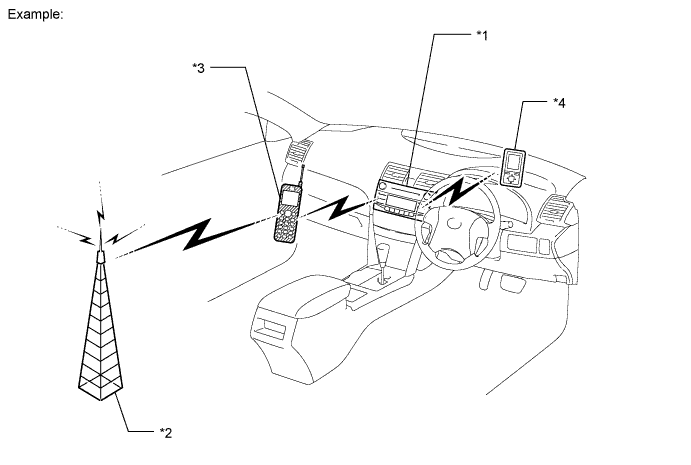
| *1 |
Radio Receiver (Built-in "Bluetooth" receiver antenna) |
*2 |
Cellular Tower |
| *3 |
Cellular Phone ("Bluetooth" compatible) |
*4 |
Portable Audio Player ("Bluetooth" type) |
"Bluetooth" is a trademark owned by Bluetooth SIG. Inc.
"Bluetooth" is a wireless connection technology that uses the 2.4 GHz frequency band.
- HINT:
- The communication performance of "Bluetooth" may vary depending on obstructions or radio wave conditions between communication devices, electromagnetic radiation, communication device sensitivity or antenna capacity.
Hands-free function
The "Bluetooth" built-in radio and display assembly and a "Bluetooth" compatible cellular phone*1 can be connected using a "Bluetooth" wireless connection. This enables use of the hands-free function on the cellular phone even the phone may be in a pocket or bag. For this reason, it is not necessary to use a connector or cable to connect the cellular phone.
*1: Some versions of "Bluetooth" compatible cellular phones may not function.
"Bluetooth" audio function
The "Bluetooth" built-in radio receiver and a "Bluetooth" compatible portable audio player*2 can be connected using a "Bluetooth" wireless connection. This enables files stored in the portable audio player to be heard from the vehicle speakers. In addition, operations such as play/stop can be performed directly from the radio and display assembly.
*2: Some versions of "Bluetooth" compatible audio players may not be able to operate the "Bluetooth" function, or music may play, but functions available using the radio and display assembly may be limited.Available "Bluetooth" audio devices
Required "Bluetooth" specifications
Ver. 1.1, or higher (Recommended: Ver. 2.0+EDR or higher)
Compatible profiles
- A2DP (Advanced Audio Distribution Profile) Ver. 1.0
- AVRCP (Audio/Video Remote Control Profile) Ver. 1.0 or higher (Ver. 1.3 or higher recommended)
Maximum number of audio devices that can be registered
2
- A2DP (Advanced Audio Distribution Profile) Ver. 1.0
| USB AUDIO SYSTEM FUNCTION OUTLINE |
The radio and display assembly is equipped with a USB terminal. Connecting a USB device or "iPod" to the radio and display assembly allows music files to be played. Not only is it possible to play music from a USB device with audio functions, is also possible to play MP3 or WMA music files that are stored on a USB device. In addition, "iPod" control software is installed, allowing file selection from playlists and operation using shuffle mode.
- HINT:
- Visual contents of an "iPod" cannot be played.
- Operation through the controls of a USB device or "iPod" cannot be performed while it is connected.
- Visual contents of an "iPod" cannot be played.
USB audio system compatible mode
USB Device
The following device formats can be used:
MP3 and WMA files written in any format other than those listed above may not play correctly, and their file names and folder names may not be displayed correctly.Compatible USB device formats
- USB communication format: USB 2.0 FS (12MBPS)
- File format: FAT16/32 (Windows)
- Class: Mass storage class
Items related to standards and limitations are as follows:- Maximum directory hierarchy: 8 levels
- Maximum number of folder in device: 700 (including the root folder)
- Maximum number of files in device: 65535
- Maximum number of files per folder: 65535
- USB communication format: USB 2.0 FS (12MBPS)
"iPod"
"iPod" is a trademark of Apple Inc., registered in the U.S. and other countries.Supported "iPod" Models and Firmware Versions Supported "iPod" Model
Supported Firmware Version
"iPod" 5G
Ver. 1.2.0 or higher
"iPod Nano" 1G
Ver. 1.3.0 or higher
"iPod Nano" 2G
Ver. 1.1.2 or higher
"iPod Nano" 3G
Ver. 1.0.0 or higher
"iPod touch"
Ver. 1.1 or higher
"iPod classic"
Ver. 1.0.0 or higher
Unsupported "iPod" Models Unsupported Models
"iPod shuffle"
"iPhone"
"iPod" 1G, 2G, 3G, 4G
"iPod mini"
- HINT:
- Depending on the generation of "iPod" used, response to commands from the vehicle may be delayed.
- Maximum number of lists in device: 9999
- Maximum number of songs in device: No limitation
- Maximum number of songs per list: No limitation
| Automatic Sound Levelizer (ASL) FUNCTION OUTLINE |
The Automatic Sound Levelizer (ASL) function automatically adjusts the sound data in order to enable to hear the clear sound from the audio system even when vehicle noise increases (as vehicle noise increases, the volume is turned up etc.). Vehicle speed signals are received from the combination meter assembly and used for the ASL.
| AVC-LAN DESCRIPTION |
What is AVC-LAN?
AVC-LAN, an abbreviation for Audio Visual Communication Local Area Network, is a united standard developed by the manufacturers in affiliation with Toyota Motor Corporation. This standard pertains to audio and visual signals as well as switch and communication signals.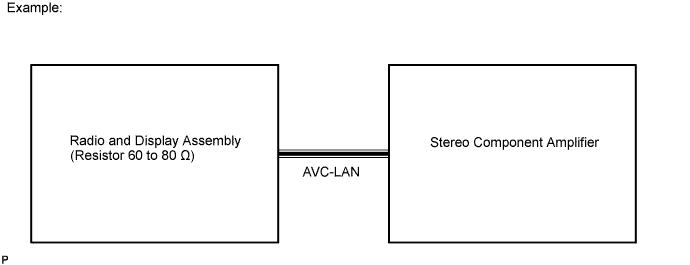
Purpose:
Recently, car audio systems have rapidly developed and the functions have vastly changed. The conventional car audio system is being integrated with multi-media interfaces similar to those in audio systems. At the same time, customers are demanding higher quality from their audio systems. This is merely an overview of the standardization background. The specific purposes are as follows:To solve sound problems etc. caused by using components of different manufacturers through signal standardization.
To allow each manufacturer to concentrate on developing products they do best. From this, reasonably priced products can be produced.
- HINT:
- If a short to +B or short to ground is detected in the AVC-LAN circuit, communication is interrupted and the audio system will stop functioning.
- If the vehicle is not equipped with the navigation system, the audio head unit acts as the master unit instead. If the system is equipped with the radio and display assembly, it is the master unit.
- The car audio system with an AVC-LAN circuit has a diagnostic function.
- Each component has a specified number (3-digit) called a physical address. Each function has a number (2-digit) called a logical address.
- If a short to +B or short to ground is detected in the AVC-LAN circuit, communication is interrupted and the audio system will stop functioning.
| COMMUNICATION SYSTEM OUTLINE |
The radio and display assembly has enough resistance (60 to 80 Ω) necessary for communication.
If a short circuit or open circuit occurs in the AVC-LAN circuit, communication is interrupted and the navigation system will stop functioning.
| DIAGNOSTIC FUNCTION OUTLINE |
The audio system has a diagnostic function (the result is indicated on the master unit).
A 3-digit hexadecimal component code (physical address) is allocated to each component on the AVC-LAN. Using this code, the component in the diagnostic function can be displayed.
| DIAGNOSIS DISPLAY DETAILED DESCRIPTION |
- HINT:
- This section contains a detailed description of displays in diagnostic mode.
- Illustrations may differ from the actual vehicle screen depending on the device settings and options. Therefore, some detailed areas may not be shown exactly the same as on the actual vehicle screen.
- This section contains a detailed description of displays in diagnostic mode.
Service Menu Screen
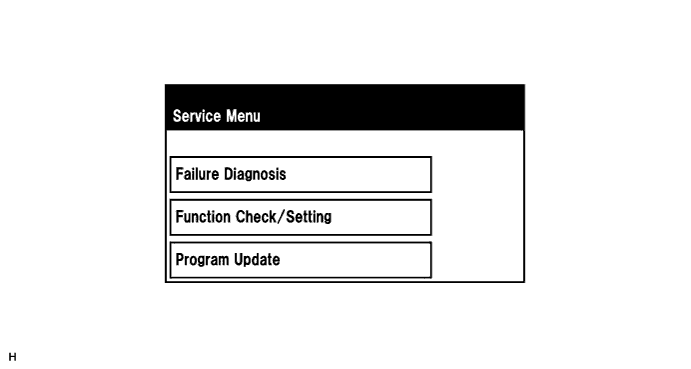
- HINT:
- Each item is grayed out or not displayed based on the device settings.
Failure Diagnosis Screen
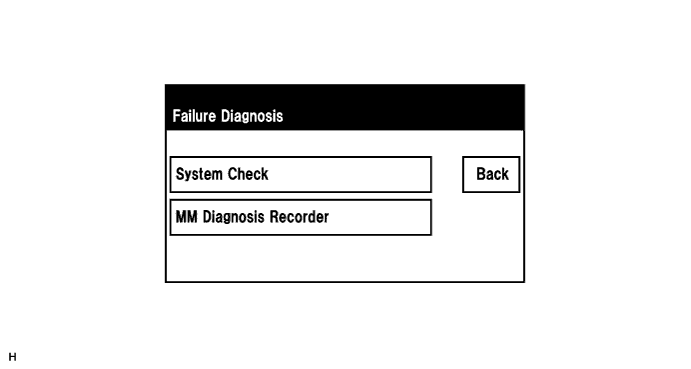
- HINT:
- Each item is grayed out or not displayed based on the device settings.
System Check Mode Screen
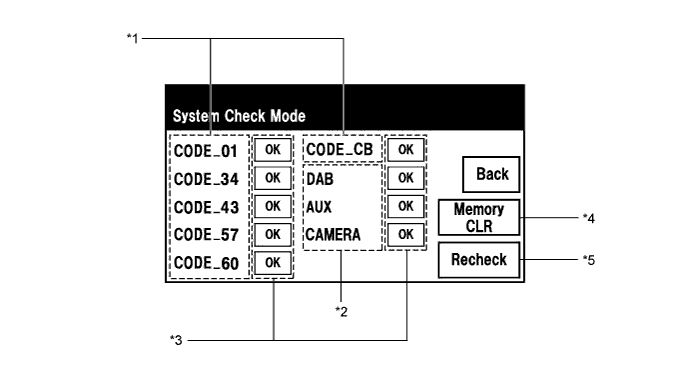
- HINT:
- Items displayed on the screen can be selected and entered by operating the "TUNE FILE" knob.
- *1: Logical Address List
- HINT:
- Logical Address List displays all of the functions that make up the audio and visual system.
- The logical addresses of the functions from Logical Address List are shown in the following table.
Logical address
Contents
01
Communication diagnosis
34
Front monitor
43
H/A CD changer
57
Telephone
60
Radio unit
CB
USB BOX
- Logical Address List displays all of the functions that make up the audio and visual system.
- *2: Device Name List
- HINT:
- Device Name List displays some of the devices that make up the audio and visual system.
- The names of the components from Device Name List are shown in the following table.
Name
Component
Connection Method
AUX
Radio and display assembly
-
DAB
Digital audio tuner
Communication line for AVC-LAN
CAMERA
Television camera assembly
Vehicle wire harness
- Device Name List displays some of the devices that make up the audio and visual system.
- *3: Check Result
- HINT:
- Result codes for all devices are displayed.
Result
Meaning
Action
OK
The device does not respond with a DTC.
-
EXCH
The device responds with a "replace"-type DTC.
Look up the DTC in "Unit Check Mode" and replace the device.
CHEK
The device responds with a "check"-type DTC.
Look up the DTC in "Unit Check Mode".
NCON
The device was previously present, but does not respond in diagnostic mode.
- Check power supply wire harness of the device.
- Check the AVC-LAN communication line of the device.
NRES
The device responds in diagnostic mode, but gives no DTC information.
- Check power supply wire harness of the device.
- Check the AVC-LAN communication line of the device.
- *4: Memory Clear
- HINT:
- Present and history DTCs and registered connected device names are cleared.
- Press the "Memory CLR" switch for 3 seconds.
- Present and history DTCs and registered connected device names are cleared.
- *5: Recheck
- HINT:
- A system check will be performed again after the memory is cleared.
- The Recheck switch will dim during a system check.
- A system check will be performed again after the memory is cleared.
Unit Check Mode Screen
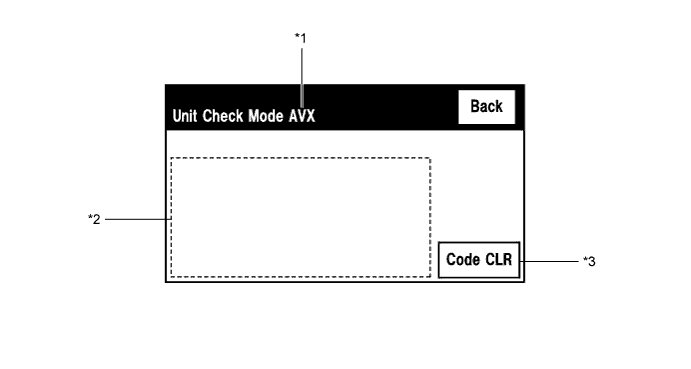
Screen Description Display
Content
*1: Device name
Target device
*2: DTC
DTC (Diagnostic Trouble Code)
*3: Diagnosis clear switch
Pushing this switch for 3 seconds clears the diagnostic memory data of the target device. (Both response to diagnostic system check result and the displayed data are cleared.)