Navigation Screen
The navigation computer calculates the present position and direction of travel, then determines a route and calculates the driving distance based on the following information sources:
- - Map data in the HDD (Models with HDD navigation system)
- - Map data in the extension module (Models with premium display audio system or premium display audio with JBL system)
- - Global Positioning System (GPS) satellites
- - Built-in gyro sensor
- - Vehicle speed signal
- - Reverse signal
- - XM NavTraffic signal (Models for U.S.A. and Canada)
- - XM NavWeather signal* (Models for U.S.A.)
- *: NavWeather service is available in the continental U.S.A.
- - Map data in the HDD (Models with HDD navigation system)
The functions of the navigation screen are listed below.
Item Function System Premium Display Audio System and Premium Display Audio with JBL System HDD Navigation System Map Display Linear Touch Scroll Enables smooth scrolling by connecting the touch points on the screen. - ○ Map Color Change Depending on the position of the light control switch, the screen changes to day mode or night mode. ○ ○ Taillight-interlocked Map Color Change Changes the color of the map screen that is displayed when the taillights are turned on. ○ ○ North Up / Heading Up - If North Up is selected, regardless of the direction of vehicle travel, north is always up.
- If Heading Up is selected, the direction of vehicle travel is always up.
○ ○ 3D Display Displays a 3-dimensional (3D) view of the map. ○ - Multi-step Scale Display Changes the map scale in 14 steps. ○ ○ Direct Scale Change Directly selects and displays the map scale. - ○ Street Name Indication on Scrolled Map Displays the street name and city name even when the map screen is being scrolled. ○ ○ Stepless Scale Display Changes the scale of the map from the basic 14 steps to an even finer range of scales. - ○ Road Number Sign Board Display (Models for U.S.A. and Canada) Displays the road number on the map. ○ ○ Point of Interest Display Displays selected types of points of interest as marks on the map. ○ ○ Split-view Display Displays different modes on a screen that is split into 2 views. - ○ Compass Mode Screen Displays the direction of travel and detailed data of the present location. - ○ Route Guidance Demonstration Demonstrates the route guidance to the destination. ○ ○ Route Trace It is possible to store up to the last 124 miles (200 km) of a traveled route and retrace the route on the display. - ○ XM NavTraffic Display Displays the XM NavTraffic icon, arrow and indicator when XM NavTraffic service is being received. - ○ XM NavWeather Display* Displays weather information icons when XM NavWeather service information is being received. - ○ XM Fuel Prices Display* Displays current fuel prices and gas station locations when XM Fuel Prices service information is being received. - ○ Vehicle Icon Appears on the 3D display. The color can be changed among blue, red, yellow, green and purple. ○ - Destination Search Preset Destination Memory Search Sets a pre-registered point as a destination point while driving. - ○ Address Search A destination can be set in 2 ways: - Information can be entered in the order of: city name, street name and house number.
- Information can be entered in the order of: street address, house number, street name and city name.
- ○ A destination can be set by entering a city name, street name, intersection name, zip code and house number. ○ - Point of Interest Search Name /
Category /
Phone No.A destination can be set in 3 ways: - The name of a POI can be entered and then searched for from City or Category.
- A POI category can be selected and a point of interest searched for near the present location, along the current route, near the city center or near the destination.
- The phone number of a point of interest can be entered to search for it.
- ○ Name /
CategoryA destination can be set in 2 ways: - The name of a POI can be entered and then searched for after selecting a search area. Search areas include defined areas (such as a user selected country, state and city), near the current position, near the main destination, or along the current route).
- A POI category can be selected and searched for near the current position, in a defined area (such as a user selected country, state and city), near the main destination, or along the current route.
○ - Previous Destination Search Stores the coordinates, names, and date of up to 100 locations that have been set as destinations in the past. ○ ○ Address Book (Memory Point) Search Sets a destination from the registered Address Book (Memory Point). ○ ○ Emergency Search Performs a specific search for police stations hospitals dealers, and fire stations. - ○ Intersection Search By specifying 2 streets, the point at which they intersect is set as the destination point. - ○ Freeway Entrance or Exit Search Searches for the destination by the name of the street that connects to a freeway entrance or exit. - ○ Map Search A destination can be set by scrolling the cursor on the map. ○ ○ Coordinate Search A destination can be input by entering its coordinates. ○ ○ Voice-recognition Search A destination can be set up by voice command input. ○ ○ Entune Search A point searched for using Entune content can be set as a destination. ○ ○ Route Search Multiple Destination Setting Sets multiple destinations. It can also rearrange the sequence of the destinations. ○ ○ Multiple Route Search Searches for multiple routes. ○ ○ Search Condition Designation Searches for the quick, alternate, and short routes. - ○ Searches for the fast, short, and ecological routes. ○ - Detour Search Changes the route to detour around a section of the route. ○ ○ Regulated Road Consideration Performs searches which consider regulated roads. - ○ Avoidance Area Searches for a route that avoids a designated area. - ○ Adjacent Road Search Searches for a route adjacent to the current road. - ○ Avoid Traffic Search Automatically changes to another route to avoid heavy congestion. - ○ Manually changes to another route to avoid heavy congestion. ○ - National Border Conscious Search Searches for routes that do not cross the border of the U.S.A., Canada or Mexico. ○ ○ Guidance Voice Guidance Provides voice guidance about the distance and the direction of travel to a destination point based on road conditions and vehicle speed. ○ ○ Next Turn Guidance Provides guidance about the distance to the next turn and indicates the direction of the turn using an arrow. ○ ○ Freeway Mode Display Displays the distance to the next junction and exit, or POIs in the vicinity of the freeway exit. - ○ Freeway Direction of Travel Display Displays the direction of travel to take on the freeway. - ○ Freeway Shield Icon Display Freeway shield icons will be displayed on the 3D guidance screen. - ○ Intersection Zoom-in Display Zooms in the image when approaching an intersection. - ○ Turn List Display Displays a turn list on the right side of the 2-screen display. - ○ Arrow (Turn-by-Turn) Display Displays the direction of the next turn and the distance to the turn on the right side of the2-screen display. - ○ Distance-to-destination Display Displays the distance from the present location to the destination. ○ ○ Estimated Arrival Time Display Displays estimated arrival time. ○ ○ Others Voice Recognition Recognizes pre-programmed system commands spoken to operate the navigation system. ○ ○ - ○: Available
- -: Not available
- *: XM NavWeather and XM Fuel Prices service is available in the continental U.S.A.
- If North Up is selected, regardless of the direction of vehicle travel, north is always up.
Information Screen (Models with Premium Display Audio System or Premium Display Audio with JBL System)
Information about fuel consumption per minute or per trip can be displayed on the vehicle information screen display.
The fuel consumption screen is displayed as illustrated below. This screen has the display functions listed below.
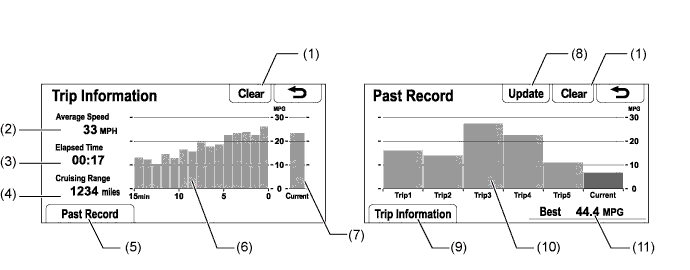
Item Outline (1) Clear Switch Clears all past information. (2) Average Speed Displays the value that has been calculated by the combination meter assembly, which is based on the distance driven and time elapsed since the ignition switch is turned to ON. (3) Elapsed Time Displays the value that has been calculated by the combination meter assembly, which is based on the time elapsed since the ignition switch is turned to ON. (4) Cruising Range Displays the approximate drivable distance. (5) Past Record Switch Changes to the Past Record (per trip) fuel consumption screen. (6) Average Per Minute Fuel Consumption - Displays the value that has been calculated by the combination meter assembly, which is based on the driven distance and the volume of fuel consumed (fuel injection signal), provided that the ignition switch is ON.
- Displays the average fuel consumption for the last minute, or since clear was last selected.
(7) Current Per Minute Fuel Consumption Displays the instantaneous (Current) fuel consumption value that has been calculated by the combination meter assembly, which is based on the driven distance and the volume of fuel consumed (fuel injection signal), provided that the ignition switch is ON. (8) Update Switch - Resets the average fuel consumption to measure the current fuel consumption again.
- Sends the average fuel consumption reset signal to the combination meter assembly to update the graph.
(9) Trip Information Switch Changes to the average per minute fuel consumption screen. (10) Average Per Trip Fuel Consumption - Displays the current record and the last 5 average per trip fuel consumption records or the current record and those since clear was last selected.
- Starts calculating the average fuel consumption when the average fuel consumption displayed on the combination meter assembly is reset.
(11) Best Fuel Consumption Displays the best (most economical) per trip fuel consumption. - Displays the value that has been calculated by the combination meter assembly, which is based on the driven distance and the volume of fuel consumed (fuel injection signal), provided that the ignition switch is ON.
Information Screen (Models with Navigation Receiver Assembly)
The functions of the information screen display are listed below.
Item Outline Map Data - Displays the map version and navigation unit ID information.
- Displays the map area that is recorded in the HDD.
Apps The Entune service is supported. This service makes it possible to operate specified applications on the navigation system by using Bluetooth to connect the navigation system to a cellular phone with the Toyota Entune application installed. Fuel Consumption Information about fuel consumption per minute or per trip can be displayed. Traffic Incidents When XM NavTraffic service information is being received, a list of current traffic incidents is displayed along with information on the incident's distance and position relative to the vehicle. XM Fuel Prices* Displays gas station information (location and fuel price) received via XM satellite radio. XM Sports* News related to user-registered sports topics can be displayed. XM Stocks* The stock price information of user-registered stock symbols can be displayed. XM NavWeather* When XM NavWeather service information is received, weather information icons are displayed on the map. - *: A subscription is needed to use this function.
- HINT:
- XM Fuel Prices, XM Sports, XM Stocks and XM NavWeather services are available in the continental U.S.A. (excluding Alaska and Hawaii).
- Displays the map version and navigation unit ID information.
The fuel consumption screen is displayed as illustrated below. This screen has the display functions listed below.
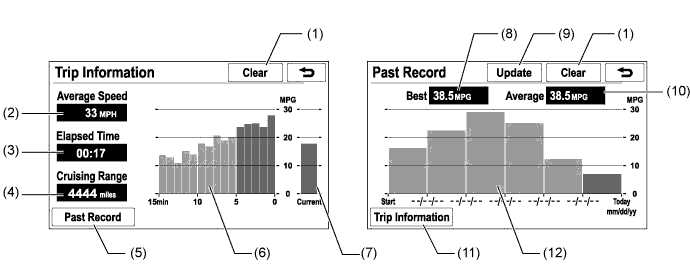
Item Outline (1) Clear Switch Clears all past information. (2) Average Speed Displays the value that has been calculated by the combination meter assembly, which is based on the distance driven and time elapsed since the ignition switch is turned to ON. (3) Elapsed Time Displays the value that has been calculated by the combination meter assembly, which is based on the time elapsed since the ignition switch is turned to ON. (4) Cruising Range Displays the approximate drivable distance. (5) Past Record Switch Changes to the Past Record (per trip) fuel consumption screen. (6) Average Per Minute Fuel Consumption - Displays the value that has been calculated by the combination meter assembly, which is based on the driven distance and the volume of fuel consumed (fuel injection signal), provided that the ignition switch is ON.
- Displays the average fuel consumption for the last minute, or since clear was last selected.
(7) Current Per Minute Fuel Consumption Displays the instantaneous (Current) fuel consumption value that has been calculated by the combination meter assembly, which is based on the driven distance and the volume of fuel consumed (fuel injection signal), provided that the ignition switch is ON. (8) Best Fuel Consumption Displays the best (most economical) per trip fuel consumption. (9) Update Switch - Restarts calculation of the average fuel consumption value.
- Sends the average fuel consumption reset signal to the combination meter assembly to update the graph.
(10) Average Fuel Consumption Displays the average fuel consumption for this trip and the previous 5 trips. (11) Trip Information Switch Changes to the average per minute fuel consumption screen. (12) Average Per Trip Fuel Consumption - Displays the current record and the last 5 average per trip fuel consumption records or the current record and those since clear was last selected.
- Starts calculating the average fuel consumption when the average fuel consumption displayed on the combination meter assembly is reset.
- Displays the value that has been calculated by the combination meter assembly, which is based on the driven distance and the volume of fuel consumed (fuel injection signal), provided that the ignition switch is ON.
Setup Screen (Models with Premium Display Audio System or Premium Display Audio with JBL System)
The settings for the functions of the multi-display are available from the setup screen.
Item Function Display Settings - Map Menu and Camera screen adjustment
- Depending on the position of the headlight switch, the screen changes to day or night mode.
General Settings - The language can be selected.
- The beep sound can be turned off.
- Registered information (personal data) can be cleared.
- Distance unit can be changed.
- Keyboard layout can be changed.
- The voice guidance volume can be adjusted or switched off.
- Phone voice volume can be adjusted.
- Ring volume can be adjusted.
- Voice Dialog volume can be adjusted.
- Data can be stored on a USB memory device.
- Data can be copied from a USB memory device.
- Time zones and the on/off settings of daylight saving time can be changed. (Models for U.S.A. and Canada).
- System information can be displayed.
Bluetooth Settings - The connection to a Bluetooth device can be turned on or off.
- Connectable Bluetooth devices can be searched for.
- The names of the Bluetooth devices that are currently connected or that are in the connection history can be displayed in a list. Additionally, availability information for each Bluetooth device is displayed.
- PIN codes used for Bluetooth connection certification can be set.
- A profile for connecting to the internet can be set.
Phone Settings - The ring tone can be changed or turned off.
- Message reception notification can be turned on or off.
- E-mail reception notification can be turned on or off.
- Phone book data stored on a cellular phone can be transferred manually.
Audio Settings - HD radio system settings can be changed:
- Receive both analog and digital broadcasts
- Receive only digital broadcasts
- Receive only analog broadcasts
- Map Menu and Camera screen adjustment
Setup Screen (Models with HDD Navigation System)
The settings for the functions of the multi-display are available from the setup screen.
Item Function Display Settings - Map Menu and Camera screen adjustment
- Depending on the position of the headlight switch, the screen changes to day or night mode.
General Settings - Time zones and the on/off setting of daylight saving time can be changed.
- The language can be selected.
- Distance units can be changed.
- The beep sound can be turned off.
- The color of the screen buttons can be changed.
- Keyboard layout can be changed.
- The opening image can be changed:
- An image that meets the following requirements can be displayed as the opening image by copying it from a USB memory device.
- File format: Jpeg file (extensions: .jpeg or .jpg)
- File size: 10 MB or less
- File name: 32 characters maximum (including file extension)
- The screen off image can be changed:
- An image that meets the following requirements can be displayed as the screen off image by copying it from a USB memory device.
- File format: Jpeg file (extensions: .jpeg or .jpg)
- File size: 10 MB or less
- File name: 32 characters maximum (including file extension)
- Automatic return from the audio screen to the map screen after audio operation can be changed.
- Registered information (personal data) can be cleared.
- Navigation system program can be updated.
- Gracenote database can be updated.
Voice Settings - The voice guidance volume can be adjusted or switched off.
- Voice guidance during route guidance can be set.
- Voice guidance while using the audio system can be set.
- Voice recognition prompts can be set.
- The voice recognition function for operating the audio functions can be turned on or off.
- Voice guidance of the traffic information function can be set.
- Voice guidance of the XM NavWeather function can be set.
Navigation Settings The Navigation Settings can be used to: - Set up Home
- Set up Preset Destinations
- Set up the Address book
- Set up Areas to Avoid
- Delete previous destinations
- Set detailed navigation settings such as:
- Average cruising speed
- Automatic input function
- Voice guidance for the next street name
- Automatic reroute of the guidance route to avoid heavy congestion
- Indication of freely flowing traffic by an arrow
- Displayed POI icon categories
- Buttons displayed on the map screen when "OFF" is selected
- Manual adjustment of the current vehicle position mark
- Display of pop-up messages
- Guidance for IPD roads
Vehicle Settings - Settings can be changed for the following maintenance items:
- Reminder
- Engine oil
- Oil filter
- Rotation
- Tires
- Battery
- Brake pad
- Wipers
- Coolant
- Brake oil
- Trans. fluid
- Service
- Air filter
- Personal
- Set dealer
- Customizable vehicle settings can be changed.
Phone Settings - Phone sound settings can be changed:
- Call Volume
- Ring Tone Volume
- Ring Tone
- Phonebook settings can be changed:
- Manage Contacts
- Manage Speed Dials
- Delete Call History
- Message function settings can be changed:
- Message forwarding from cellular phones
- New message notification display
- New message voice notification
- Adjust the new message notification volume
- Select a new message voice notification tone
- Automatic message read out
- Adjust the message read out volume
- Cellular phone's read and unread status update
- Edit "Quick Reply messages"
- Phone display settings can be changed:
- Change the incoming call display
- Display of the automatic phonebook transfer completion message (For PBAP compatible models)
- Display of the automatic call history transfer completion message (For PBAP compatible models)
- Display of images during calls (For PBAP compatible models)
- Orientation of images displayed during calls (For PBAP compatible models)
Bluetooth Settings - Bluetooth device registration settings can be changed:
- Register a Bluetooth device
- Delete the Bluetooth device
- Edit the Bluetooth device
- Bluetooth devices can be selected.
- Bluetooth device settings can be changed:
- Automatic connection to a Bluetooth device
- Changed to a desired Bluetooth device name
- Edited the Bluetooth device passcode
- Display Bluetooth device connection status
Audio Settings - HD radio system settings can be changed:
- Receive only digital broadcasts
- Receive only analog broadcasts
- Display cover art when a song stored in an iPod is being played
Other Settings - XM Sports settings can be changed:
- Input sports teams
- Delete sports teams
- XM Stocks settings can be changed:
- Input stocks
- Delete stocks
- XM Fuel Prices settings can be changed:
- Select fuel type
- Select preferred brand
- Register show prices report
- Map Menu and Camera screen adjustment