Home › BODY ELECTRICAL › AUDIO / VISUAL › AUDIO AND VISUAL SYSTEM (for Radio and Display Type)

AUDIO AND VISUAL SYSTEM (for Radio and Display Type) > DTC CHECK / CLEAR

for Preparation Click here


START DIAGNOSTIC MODE

HINT:
  1. Illustrations may differ from the actual vehicle depending on the device settings and options. Therefore, some detailed areas may not be shown exactly the same as on the actual vehicle.
  2. If the system cannot enter the diagnostic mode, replace the radio and display receiver assembly (Click here).

  1. Start the engine.


  2. C240173E01
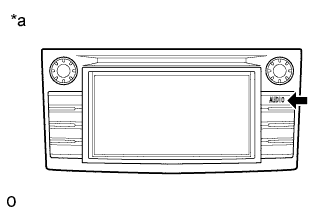
  3. While pressing and holding the "AUDIO" or "MEDIA" switch, operate the light control switch: off → turn on → turn off → turn on → turn off → turn on → turn off.
    Text in Illustration 
    *a
    Example


  4. E222227
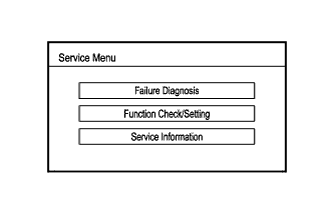
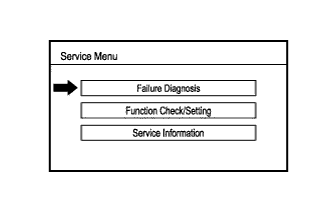
  5. Diagnostic mode starts and the "Service Menu" screen is displayed.

FINISH DIAGNOSTIC MODE
  1. There are 2 methods to end diagnostic mode. Use one of them.

    1. Turn the ignition switch off.

    2. Press and hold the "AUDIO" or "MEDIA" switch for 3 seconds.


FAILURE DIAGNOSIS


    E222228
  1. Touch the "Failure Diagnosis" button on the "Service Menu" screen.


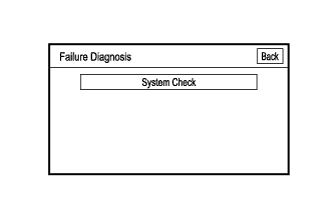
  2. E222229
  3. The "Failure Diagnosis" screen is displayed.


SYSTEM CHECK


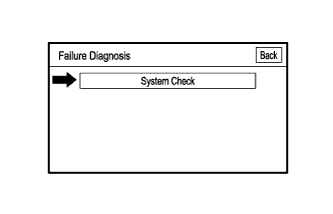
    E222230
  1. Touch the "System Check" button on the "Failure Diagnosis" screen.


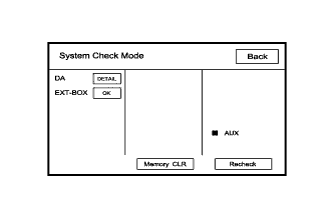
  2. E222231
  3. The "System Check Mode" screen is displayed.


CHECK DTC (CHECK USING SYSTEM CHECK MODE SCREEN)
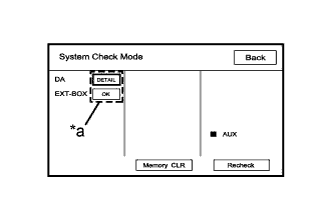
  1. Read the system check result.


  2. E222234E01
  3. If the check result is "DETAIL", touch the displayed check result.
    Text in Illustration 
    *a
    Check Result


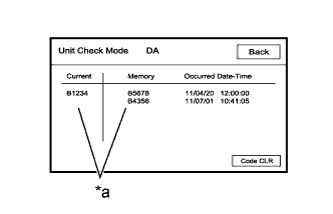
  4. E222238E01
  5. View the results on the "Unit Check Mode" screen and record them.
    Text in Illustration 
    *a
    Diagnostic Code

  6. When proceeding to view the results of another device, touch the "Back" button to return to the "System Check Mode" screen.

    HINT:
    To check the other items, repeat this procedure from the first step.


DTC CLEAR/RECHECK (CLEAR USING SYSTEM CHECK MODE SCREEN)


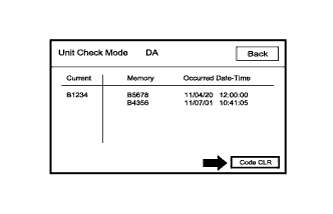
  1. Clear DTC


      E222240
    1. Touch the "Code CLR" button for 3 seconds.

    2. Confirm that the check results are cleared.

      HINT:
      1. To clear the DTC for a specific device, clear the DTC using the "Unit Check Mode" screen.
      2. When clearing a DTC using the "Unit Check Mode" screen, touch the "Code CLR" button for 3 seconds.


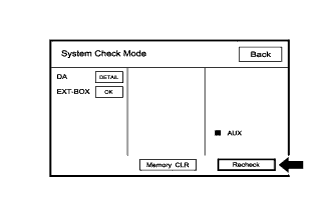
  2. Recheck


      E222241
    1. Touch the "Recheck" button.


    2. E222242
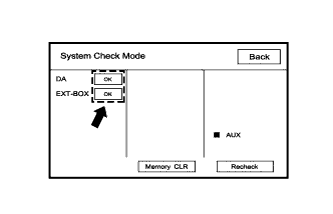
    3. Confirm that all check results are "OK" when the check results are displayed. If a result other than "OK" is displayed, troubleshoot again.

      HINT:
      When a DTC is cleared using the "Unit Check Mode" screen, touch the "Back" button to return to the "System Check Mode" screen and perform this operation.