NAVIGATION / MULTI INFO DISPLAY NAVIGATION SYSTEM / MULTI INFORMATION SYSTEM GENERAL GENERAL
OUTLINE
A multiple display function is provided. This function allows items such as a map screen and audio screen to be displayed on the navigation system screen simultaneously. The screen layout and displayed items are customizable, and by touching an item, it can be displayed full-screen.
The map database of the navigation system is stored in the micro SD card in the display and navigation module display. To update the map database, purchase a new micro SD card with the latest map database and replace the old micro SD card.
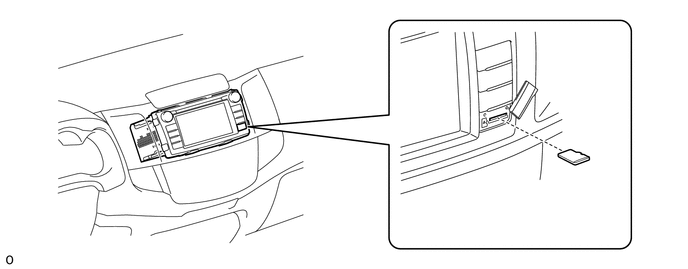
| *1 | Display and Navigation Module Display | *2 | Micro SD Card |
SPECIFICATION
| Multi-display | 6.1-inch Wide Video Graphics Array (WVGA) | |
| Navigation Computer | PIONEER | |
| Gyro Sensor | Piezoelectric Ceramic Element | |
| Map Data Media | Micro SD Card | |
| Micro SD card | PIONEER | |
| Language Supported | Voice Guidance | English, Spanish and Portuguese |
| Voice Recognition | - | |
MAIN FEATURES
The main functions of the display and navigation module display are listed below.
| Function | Outline | |
|---|---|---|
| Navigation System | Through the use of the Global Positioning System (GPS) and map data stored on a micro SD card, the navigation system analyzes the position of the vehicle and indicates the current position on the map displayed on the screen. In addition, the user can use the system to register memory points and navigate to a destination. | |
| Audio/Video System | Serves as the display and controls for the following operations:
·
Radio operation ·
CD/DVD player operation ·
Bluetooth-compatible portable player operation ·
iPod/iPhone operation ·
USB memory operation ·
Portable audio/video player operation (AUX type) |
|
| Customization Screen | The user can display and select the operation history, and can register, set up or switch the user. | |
| TV System | The user can watch TV programs when the vehicle has been stopped and the parking brake has been applied. While driving, no images appear for safety reasons. | |
| Hands-free System | When a Bluetooth-compatible cellular telephone is registered with the display and navigation module display, the driver can make and receive hands-free calls by operating the switches on the screen and steering pad. | |
| Monitor System | When the shift lever is moved to R, a view of the area behind the vehicle captured by the television camera mounted on the back door is displayed on the screen. | |
| System Settings | Language Setting | The user can set the language for the menu screen, each message display and some instances of voice guidance. |
| Time Setting | The GMT time zone and the daylight saving time can be set. | |
| Theme Color Setting | The user can select a color used when displaying some parts of the screens, such as the OK button and the progress bar. | |
| Fuel Consumption Setting | The user can specify base values for fuel consumption that will be used for calculating the Eco route. | |
| Software Update | The user can update the navigation system software or check the update history. | |
| Animation Setting | The user can turn some of the animations displayed on the screen on or off, such as those used for list scrolling. | |
| Display Setting | The user can adjust screen brightness and contrast to suit the brightness of the surroundings. | |
| Restore Default Settings | The user can restore the system settings to their default values. | |
| Quick Setup | The user can set up the basic settings by following the instructions on the screen. | |
| Audio Settings | The user can customize the audio sound function as desired. | |
| Bluetooth Setting | ·
Register Device: The user can register a Bluetooth device for use with navigation system. ·
Connection: When two or more cellular phones are registered with the navigation system, the user can manually switch the cellular phone to be used. The user can also delete a registered cellular phone. ·
Device Name: The user can change the name shown on the Bluetooth device. ·
Passkey: The user can change the passkey of the navigation system. ·
Bluetooth On/Off: The user can turn the Bluetooth connection on or off. |
|
| Volume Settings | The following volume settings are available:
·
Guidance: The user can adjust the volume of the voice guidance from the navigation system. ·
Beep: The user can turn the beep sound on or off. ·
In-call: The user can adjust the incoming call volume. ·
Ringtone: The user can adjust the ringtone volume. ·
Transmit: The user can adjust the volume of outgoing calls. |
|
| Position/Direction | The user can correct the deviation of the vehicle position. | |
| Location Fix | When driving on a road that can be either a local road or a toll road, and the system sets the incorrect type of road, the user can change the vehicle position to use the correct type. | |
| Navigation Function Settings | ·
Change Map Color: The map color can be set to Automatic or Day mode. ·
Road Color: The road color can be set to red or blue. ·
Rodizio Display: Rodizio display on the map can be turned on or off. ·
Track Log Auto Delete: The user can set whether to automatically delete travel routes near home or when powering off, or to disable automatic deletion. ·
Display Track Log: Travel route display on the screen can be turned on or off. ·
2D View-locked Scrolling: The 2D view-locked scrolling can be turned on or off. ·
Current Location Info: The present location can be displayed as a road name or as coordinates. ·
3D Landmark Display: The display of 3D landmarks can be turned on or off. ·
Map Scroll Settings: Flick scrolling or point scrolling can be selected as the map scrolling method. ·
Route Options: Recommended, Short or Main Road can be selected for route search. ·
Toll Route: Normal or Avoid can be selected for route search. ·
Ferry Route: Normal or Avoid can be selected for route search. ·
Motorway Route: Normal or Avoid can be selected for route search. ·
Time Restrictions: Performing a route search that avoids roads and bridges that have time restrictions for certain periods of time can be turned on or off. ·
Learned Route: Route searching which takes previously-driven routes into consideration can be turned on or off. ·
Distance and ETA: The destination or next waypoint can be selected for use on the distance and ETA display. ·
Minor Ordinary Road: 20 km/h, 30 km/h, 40 km/h, 60 km/h, 80 km/h, 10 mph, 20 mph, 25 mph, 40 mph or 50 mph is selectable as an average traveling speed to calculate the ETA. ·
Major Ordinary Road: 40 km/h, 60 km/h, 80 km/h, 100 km/h, 120 km/h, 25 mph, 40 mph, 50 mph, 60 mph or 75 mph is selectable as an average traveling speed to calculate the ETA. ·
Motorway: 60 km/h, 80 km/h, 100 km/h, 120 km/h, 140 km/h, 40 mph, 50 mph, 60 mph, 75 mph or 90 mph is selectable as an average traveling speed to calculate the ETA. ·
km/mile: "km, km/l", "km, l/100km", "mile, mpg", or "mile and yard, mpg" can be selected for the distance display. ·
Close Up View: The Close Up View can be set to use 2D or 3D, or turned off. ·
AV Guide Mode: AV guide mode can be turned on or off. ·
IPD Road Guidance: IPD road guidance can be turned on or off. ·
Rodizio Alert: Notifications for routes passing through Rodizio can be set to display or not display when the navigation system starts. |
|
| Edit Navi Data | Edit Favorite | ·
Edit: The user can edit the registered information. ·
Delete: The user can delete the registered location. ·
Delete All: The user can delete all the registered locations. |
| Edit special favorites | ·
Edit: The user can edit the registered information. ·
Delete: The user can delete the registered location. |
|
| Delete Search History | The user can delete the search history. | |
| Delete Learned Routes | The user can delete the learned routes. | |
| Delete Track Log | The user can delete the track log. | |
| DVD Video Settings | ·
Basic Subtitle Language: The user can assign the top-priority language for the subtitles initially used during playback (multi-subtitle language). ·
Basic Sound Language: The user can assign the top-priority language for the audio initially used during playback. ·
Menu Language: The user can assign the top-priority language used for menus. ·
TV Aspect Ratio: The aspect ratio (width-to-height) of the connected TV can be changed. ·
Limit View: The user can utilize the parental lock to set restrictions for some DVD-Video discs to prevent children from watching violent or adult-oriented scenes. ·
Auto Play: When a DVD disc with a DVD menu is inserted, the navigation system automatically starts playback from the first chapter of the first title. |
|
| TV Settings | ·
Clearing the viewer settings: Before you dispose of or transfer this navigation system to someone else, you can clear your channel list stored on the system. ·
Setting the parental lock: You can set the parental lock to the TV function to keep children from watching TV programs. |
|
| Diagnosis | This menu contains the following items:
·
Failure Diagnosis ·
System Check ·
Diagnosis Recorder ·
Function Check / Setting ·
Panel and Steering Switch ·
Microphone Check ·
Vehicle Signal ·
HF Voice Quality Setting ·
Touch Switch ·
System Sensors Check ·
DTV Reception Check ·
Service Information ·
Program Update ·
Version Information ·
Product Information |
|