NAVIGATION / MULTI INFO DISPLAY NAVIGATION SYSTEM / MULTI INFORMATION SYSTEM CONTROL NAVIGATION / MULTI INFORMATION
FUNCTION OF MAIN COMPONENTS
The components have the following functions:
| Component | Function |
|---|---|
|
*: Models with multi-information display linked function |
|
| Navigation Receiver Assembly | Receives and processes the data that is input from various components, displays various pieces of information and operating conditions on the screen, and provides voice guidance. |
| Navigation Antenna Assembly | Receives signals from GPS satellites and transmits them to the navigation receiver assembly. |
| No. 1 Amplifier Antenna Assembly
·
AM ·
FM |
·
Receives radio broadcasting signals (AM/FM). ·
Amplifies radio broadcasting signals from the roof antenna pole subassembly and sends them to the audio head unit. |
| Window Glass Antenna Wire (Front)
·
Digital TV |
Receives digital TV signals. |
| Television Antenna Assembly | Amplifies digital TV signals from the digital TV antenna and sends them to the radio receiver assembly. |
| Steering Pad Switch Assembly | Enables the driver to operate the navigation system using the steering pad switches. |
| Telephone Microphone Assembly | Transmits voice signals to the navigation receiver assembly. |
| No. 1 Stereo Jack Adapter Assembly | Transmits information about the portable audio player connected to the USB port or AUX port to the navigation receiver assembly. |
| Combination Meter Assembly | ·
Displays information such as audio status information received from the audio head unit on the multi-information display.* ·
Sends operation signals to the audio head unit when the audio system is operated via the multi-information display.* ·
Sends a vehicle speed signal to the audio head unit. |
FUNCTION
Navigation Screen
The navigation computer calculates the present position and direction of travel, determines a route and calculates the driving distance based on the following information sources:
Map data in the microSD card
Global Positioning System (GPS) satellites
Built-in gyro sensor
Vehicle speed signal
Reverse signal
Parking brake signal
| Item | Function | |
|---|---|---|
| Map Display | Current Position | Displays the current position when the navigation system starts. |
| Moving (Scrolling) Map | Moves the map to the user's desired location. | |
| Switching Map Orientation | Switches the screen between 2D and 3D views. | |
| Street View | Displays different modes on a screen that is split into 2 views. | |
| One-way Street Display | Displays the one-way street mark. | |
| Changing Map Scale | Changes the map scale between 10 m and 2000 km. | |
| Text Zoom | Zooms in on the text of location names and Point Of Interest (POIs) displayed on the map screen. | |
| Registering Scale | Scales for each map in accordance with the display method. The registered scale is displayed on the map screen when the HOME button is pressed. | |
| Setting Logo Display | Displays logos of various POIs on the map. | |
| Destination Search | By Map | Destinations can be found on the map. |
| By Address | Searches for a destination by using the destination address entered. | |
| By Home | Searches for the route to the user's home. | |
| By Favorites | Selects the destination from the locations to search for the destination. | |
| By History | Selects the destination from the locations searched in the past to search for the destination. | |
| By Name | Searches for the destination by using the destination name entered. | |
| By Near Here | Specifies the category of POIs around the current location to search for the destination. | |
| By Near Destination | Specifies the category of POIs around the destination to search for the destination. | |
| By Near City | Specifies the city, and then the category of POIs around the city to search for the destination. | |
| By Coordinates | Specifies the longitude and latitude to search for the destination. | |
| By Special Favorites | If the user has special favorites already registered, the destination can be found by specifying one of the favorites. | |
| By Telephone Number | The user can find the destination by telephone number. | |
| Route Search | Multiple Destination Setting | Sets multiple destinations:
·
Adding waypoint: A waypoint can be added to the route and used during route guidance. ·
Adding destination: A new destination can be added before or after the currently set destination(s). ·
Reordering destination: The arrival order of the multiple destinations that are set can be changed. ·
Deleting destination: A destination can be deleted. |
| Road Preference | The user can choose whether the system uses the following items on the way to the destination:
·
Route display ·
Route search condition/criteria display ·
Distance ·
Travel time |
|
| Approaching Intersection | Displays the guidance screen of the intersection. | |
| Approaching Motorway Exit or Junction | Displays the guidance screen of the motorway exit or junction. | |
| Approaching a Roundabout | When the user approaches a roundabout on the route, the roundabout guidance appears on the right pane. | |
| Voice Guidance | During route guidance, the following types of voice guidance are provided:
·
Continue driving straight guidance ·
Right/left turn guidance ·
U-turn guidance ·
Road branching guidance ·
Destination approach/arrival guidance and so on |
|
| Editing Route | The user can edit a route by confirming the set route, specifying waypoints, etc. | |
Information Screen
The functions of the information screen display are listed below.
| Item | Function | |
|---|---|---|
| Maintenance | Item Settings | This menu contains the following items:
·
Engine oil: Replace engine oil ·
Oil filter: Replace engine oil filter ·
Rotation: Rotate tires ·
Tires: Replace tires ·
Air filter: Replace air filter ·
Brake pad: Replace brake pads ·
V-belt: Replace V-ribbed belt ·
Coolant: Replace engine coolant ·
Brake oil: Replace brake fluid ·
Trans. Fluid: Replace ATF ·
Optional entry: New information items can be created separately from the provided items. |
| Customize | The user can set whether to automatically notify of replacement times and delete or update all the settings. | |
| Dealer settings | The user can specify a set of dealer information and use it for route search and call making. | |
| Image Display | The user can open individual image files one by one or view a slideshow of all the image files stored on the USB memory device. | |
| ECO | Information about fuel consumption per minute or per trip can be displayed. | |
The fuel consumption screen is displayed as illustrated below. This screen has the display functions listed below.
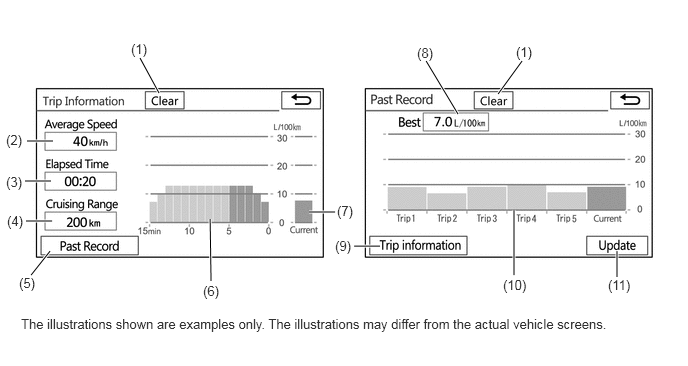
| Item | Outline | |
|---|---|---|
| (1) | Clear Switch | Clears all past information. |
| (2) | Average Speed | Displays an average speed value that has been calculated by the combination meter assembly, which is based on the distance driven and time elapsed since the ignition switch was turned to ON. |
| (3) | Elapsed Time | Displays an elapsed time value that has been calculated by the combination meter assembly, which is based on the time elapsed since the ignition switch was turned to ON. |
| (4) | Cruising Range | Displays the approximate drivable distance. |
| (5) | Past Record Switch | Changes the screen to the past record fuel consumption screen (per trip). |
| (6) | Average Fuel Consumption per Minute | ·
Displays the value that has been calculated by the combination meter assembly, which is based on the driven distance and the volume of fuel consumed (fuel injection signal), since the ignition switch was turned to ON. ·
Displays the average fuel consumption for the last minute, or since clear was last selected. |
| (7) | Current Fuel Consumption per Minute | Displays the instantaneous (current) fuel consumption value that has been calculated by the combination meter assembly, which is based on the driven distance and the volume of fuel consumed (fuel injection signal), since the ignition switch was turned to ON. |
| (8) | Best Fuel Consumption | Displays the best (most economical) fuel consumption per trip. |
| (9) | Trip Information Switch | Changes the screen to the average fuel consumption per minute screen. |
| (10) | Average Fuel Consumption | Displays the average fuel consumption for this trip and the previous 5 trips |
| (11) | Update Switch | ·
Restarts calculation of the average fuel consumption value. ·
Sends the average fuel consumption reset signal to the combination meter assembly to update the graph. |
Setup Screen
The settings for the functions of the navigation receiver assembly are available from the "Edit/settings" screen.
| Tab | Item | Function |
|---|---|---|
| System | System Settings | The user can specify information for using the navigation system, such as the language and the local time.
·
Time settings: The user can set the time display format (12 hours) and summer time. ·
Language settings: The user can switch the language for the menu screen, each message display and certain voice guidance functions. ·
Theme color: The user can select a color for displaying some parts on the screens. ·
Fuel settings: The user can specify base values for fuel consumption that will be used for choosing the most Eco route. ·
Animation: The user can turn on or off some animations displayed on the screens, such as ones for list scrolling. ·
Display: The user can adjust the contrast and brightness of the menu screen, map screen and rear view monitor screen. ·
Touch switch sensitivity: The user can adjust the sensitivity level of the electrostatic type switches. |
| Voice Settings | The user can change or turn off the volume of the route guidance and the operation sound. | |
| Bluetooth Settings | The user can set up Bluetooth communications to the navigation system.
·
Add: The user can add a Bluetooth device for Bluetooth connection on the navigation system after turning on the Bluetooth settings of the Bluetooth device. ·
Change/remove device: When 2 or more cellular phones for Bluetooth connection are registered, the user can manually switch the cellular phone to be used. The user can also remove an added cellular phone. ·
System name: The user can change the name of the device to be connected through Bluetooth. ·
PIN code: The user can change the PIN code of the navigation system. ·
Bluetooth on/off: The user can turn the Bluetooth on or off. ·
Phone connection help: The user can specify whether to have the navigation system inform them if it cannot establish a connection with the registered cellular phone within 60 seconds from startup. |
|
| Screen Off | The user can temporarily turn off the touch panel screen. | |
| Navigations | Edit Navi Data | The user can edit or delete data such as registered locations and track logs. |
| Navi Settings | The user can customize the navigation system, making it easier to use by changing the settings according to their purposes and preferences. For details, refer to the Owner's Manual. | |
| Position/Direction | If the position of the user's vehicle is deviated from the actual location, the user can correct it. | |
| Location Fix | The user can switch the current road indicated by the navigation system between ordinary and toll roads. | |
| Audio | Audio Settings | The user can customize the audio settings.
·
FAD/BAL: The user can set the front/rear and side speaker volume balance. ·
Tone control settings: The user can adjust the volume level of each AV source to minimize the change in volume when switching the AV source. ·
Auto sound levelizer: The user can set the Automatic Sound Levelizer (ASL) sensor level to automatically adjust the sound volume in accordance with the vehicle speed and ensure the best sound level while the vehicle is driven. |
| DVD Settings | The user can customize the DVD settings that control the playback of discs.
·
Subtitle language: The user can assign the top-priority language to subtitles initially used during playback. ·
Audio language: The user can assign the top-priority language to audio initially used during playback. ·
Menu language: The user can assign the top-priority language used for menus. ·
TV aspect ratio: The TV aspect (width-to-height) ratio of the connected TV can be switched. ·
Parental lock: The user can restrict playback of DVD-Video discs. ·
Auto-play setting: The user can specify whether to automatically start playing a DVD when they start driving with the DVD menu screen displayed. |
|
| USB Video Settings | The user can change the aspect ratio for displaying the images stored on the USB memory device. | |
| Ext. Video Settings | The user can select the video standard.
·
Auto ·
NTSC ·
PAL |
DIAGNOSIS
For details on the procedure required to enter the Service Menu screen, refer to the Repair Manual.