NAVIGATION / MULTI INFO DISPLAY NAVIGATION SYSTEM / MULTI INFORMATION SYSTEM GENERAL/CONTROL/DETAILS DETAILS
FUNCTION OF MAIN COMPONENTS
| Component | Function |
|---|---|
| Navigation Receiver Assembly*1 | Receives and processes the data that is input from various components, displays various pieces of information and operating conditions on the screen, and provides voice guidance. |
| Radio and Display Receiver Assembly*2
- Extension Box (Navigation ECU) |
|
| Navigation Antenna Assembly*3 | Receives signals from the GPS satellites and transmits them to the navigation receiver assembly or the radio and display receiver assembly. |
| Telephone Antenna Assembly*4
·
GPS Antenna |
Receives signals from the GPS satellites and transmits them to the navigation receiver assembly or the radio and display receiver assembly. |
| Combination Meter Assembly | ·
Transmits vehicle speed signals to the navigation receiver assembly or the radio and display receiver assembly. ·
Displays navigation information, such as directions and route guidance sent from the navigation receiver assembly or the radio and display receiver assembly, on the multi-information display.*5 |
| Steering Pad Switch Assembly | Enables the driver to operate the navigation system from the steering pad switches. |
| Map Light Assembly
- Telephone Microphone Assembly |
Transmits voice signals to the navigation receiver assembly or the radio and display receiver assembly. |
| Back-up Light Switch Assembly*6 | Transmits the on/off signal of the back-up light switch assembly to the navigation receiver assembly or the radio and display receiver assembly. |
| Park/Neutral Position Switch Assembly*7 | Transmits the R position signal to the navigation receiver assembly or the radio and display receiver assembly. |
| No. 1 Stereo Jack Adapter Assembly | Transmits information about the portable audio player connected to the USB port or AUX port to the navigation receiver assembly or radio and display receiver assembly. |
| Telematics Transceiver*8 | Sends microphone voice signals sent from the telephone microphone assembly to the radio and display receiver assembly. |
| Central Gateway ECU (Network Gateway ECU) | Relays the signal between the CAN communication lines. |
*1: Models without extension box
*2: Models with extension box
*3: Models without heated windshield defroster system
*4: Models with heated windshield defroster system
*5: Models with multi-information linked function
*6: Models with manual transmission
*7: Models with automatic transmission
*8: Models with ERA-GLONASS
FUNCTION
Navigation Screen
The navigation computer calculates the present position and direction of travel, then determines a route and calculates the driving distance based on the following information sources:
Map data in the microSD card, extension box or built-in memory
Global Positioning System (GPS) satellites
Built-in gyro sensor
Vehicle speed signal
Reverse signal
Parking brake signal
Radio Data System Traffic Message Channel (RDS-TMC) signal
| Function | Outline | |
|---|---|---|
| Map Display | Taillight-interlocked Map Color Change | Changes the color of the map screen when the taillights are turned on. |
| North Up/Heading Up | ·
If North Up is selected, north is always at the top of the map. ·
If Heading Up is selected, the direction the vehicle is traveling is at the top of the map. |
|
| 3D Display | Displays a 3-dimensional (3D) view of the map. | |
| Zoom In/Zoom Out | Change the area of the map displayed on the screen. | |
| Tilt Up/Tilt Down | In 3D mode, you can change the vertical display angle of the map. | |
| Rotate Left/Rotate Right | Rotates the map left and right. | |
| Street Name Indication on Scrolled Map | Displays the street name and city name even when the map screen is being scrolled. | |
| Road Number Sign Board | Displays the road number on the map. | |
| Point of Interest Display | Displays selected types of points of interest as marks on the map. | |
| Multiple Display Function | Displays different modes on a screen that is split into 2 or 3 views. | |
| Route Guidance Demonstration | Demonstrates route guidance to the destination. | |
| Route Trace | Displays a list of all trip logs, whether they were saved by the user upon reaching the destination or whether they were saved automatically. | |
| RDS-TMC Display | Displays RDS-TMC icons, arrows, pop-up messages and indicators when the RDS-TMC service is being received. | |
| Help Nearby Screen | The user can search for the following services around the current position of the vehicle or the latest confirmed position:
·
Car Repair Around Here: Vehicle repairs/Road-side assistance services ·
Health Around Here: Hospitals/Emergency services ·
Police Around Here: Police stations ·
Petrol Station Around Here: Gas stations |
|
| Destination Search | Preset Destination Memory Search | A destination can be set from a pre-registered point while driving. |
| Address Search | Destination information can be entered in the following order: area, town name, street name and house number. | |
| Hybrid Point of Interest | Narrows the search by names of the point of interest, category and areas. | |
| Previous Destination Search | Stores the coordinates, names, and date of up to 100 locations that have been set as destinations. | |
| Online Database Destination Search | A destination can be set from a point searched for using the Toyota Link apps content. | |
| Point of Interest Search | A destination can be set in 3 ways:
·
The name of a POI can be entered and searched for from city or category. ·
A POI category can be selected to search for a POI near the present location, along the current route, near the city center or near the destination. ·
A POI can be searched for by its phone number. |
|
| Map Search | A destination can be set by scrolling the cursor on the map. | |
| Memory Point Search | A destination can be set from the registered memory point. | |
| Intersection or Motorway Entrance/Exit Search | A destination can be set in 2 ways:
·
By specifying 2 streets, the point at which they intersect is set as the destination point. ·
Searches for the destination by the name of the street that connects to a motorway entrance or exit. |
|
| Address Book (Memory Point) Search | A destination can be set from the registered address book (memory point). | |
| Coordinate Search | A destination can be input by entering its coordinates. | |
| Route Search | Multiple Destination Setting | Multiple destinations can be set. The sequence of the destinations can be rearranged as well. |
| Multiple Route Search | Searches for multiple routes. | |
| Search Condition Designation | Searches for quick, alternate and short routes. | |
| Destination Reordering | Changes the order of destinations when more than one destination is selected. | |
| Detour Search | Changes the route to detour around a section of the route. | |
| Avoidance Area | Searches for a route that avoids a designated area. | |
| Auto Avoid Traffic Search | Automatically changes to another route to avoid heavy congestion. | |
| Guidance | Voice Guidance | Provides voice guidance about the distance and the direction of travel to a destination point based on road conditions and vehicle speed. |
| Next Turn Guidance | Provides guidance about the distance to the next turn and indicates the direction of the turn using an arrow. | |
| Motorway Mode Display | Displays the distance to the next junction and exit, or POIs in the area around a motorway exit. | |
| Motorway Exit or Junction Display | When the vehicle approaches an exit or junction, the motorway guidance screen will be displayed. | |
| Motorway Direction of Travel Display | Displays the direction of travel to take on the motorway. | |
| Real Motorway Junction Display | Displays the junction and signage in 3D in the area around a major junction while driving. | |
| Intersection Zoom-in Display | Zooms in the image when approaching an intersection. | |
| Turn List Display | Displays a turn list on the right side of the 2-screen display. | |
| Arrow (Turn-by-turn) Display | Displays the direction of the next turn and the distance to the turn on the right side of the 2- screen display. | |
| Lane List Display | Displays a lane list on the right side of the 2-screen display. | |
| Distance-to-destination Display | Displays the distance from the present location to the destination. | |
| Driver Support Information Icon Display | Displays warning icons when the vehicle approaches areas such as school zones, railway crossings or high accident zones. | |
| Route Information Bar Display | Displays the following information:
·
Street name of the current location ·
Distance and travel time to the destination ·
Distance to the destination and estimated time of arrival ·
Distance to the destination and an arrow facing the destination (when off the route during guidance) |
|
| Traffic Bar Display | Displays traffic information of congestions or accidents on the route using the traffic bar (except models for G.C.C. countries). | |
| Others | Voice Recognition | Recognizes pre-programmed system commands spoken to operate the navigation system. |
| Map Coverage Information Display | Displays the map area that is stored on the microSD card. | |
| Function | Outline | |
|---|---|---|
| Map Display | Taillight-interlocked Map Color Change | Changes the color of the map screen when the taillights are turned on. |
| North Up/Heading Up | ·
If North Up is selected, north is always at the top of the map. ·
If Heading Up is selected, the direction the vehicle is traveling is at the top of the map. |
|
| 3D Display | Displays a 3-dimensional (3D) view of the map. | |
| Zoom in/Zoom out | Change the area of the map displayed on the screen. | |
| Street Name Indication on Scrolled Map | Displays the street name and city name even when the map screen is being scrolled. | |
| Road Number Sign Board | Displays the road number on the map. | |
| Point of Interest Display | Displays selected types of points of interest as marks on the map. | |
| RDS-TMC Display | Displays RDS-TMC icons, arrows, popup messages and indicators when RDS-TMC service is being received. | |
| Destination Search | Preset Destination Memory Search | A destination can be set from a pre-registered point. |
| Address Search | Destination information can be entered in the following order: area, town name, street name and house number. | |
| Previous Destination Search | Stores the coordinates, names, and date of up to 100 locations that have been set as destinations. | |
| Online Database Destination Search | A destination can be set from a point searched for using the Toyota Link apps content. | |
| Point of Interest Search | A destination can be set in 3 ways:
·
The name of a POI can be entered and searched for from city or category. ·
A POI category can be selected to search for a POI near the present location, along the current route, near the city center or near the destination. |
|
| Map Search | A destination can be set by scrolling the cursor on the map. | |
| Address Book (Memory Point) Search | A destination can be set from the registered Address Book (Memory Point). | |
| Coordinate Search | A destination can be input by entering its coordinates. | |
| Route Search | Multiple Destination Setting | Multiple destinations can be set. The sequence of the destinations can be rearranged as well. |
| Search Condition Designation | Searches for the fast, short and ecological routes. | |
| Destination Reordering | Changes the order of destinations when more than one destination is selected. | |
| Detour Search | Changes the route to detour around a section of the route. | |
| Avoidance Area | Searches for a route that avoids a designated area. | |
| Auto Avoid Traffic Search | Automatically changes to another route to avoid heavy congestion. | |
| Guidance | Voice Guidance | Provides voice guidance about the distance and the direction of travel to a destination point based on road conditions and vehicle speed. |
| Next Turn Guidance | Provides guidance about the distance to the next turn and indicates the direction of the turn using an arrow. | |
| Motorway Exit or Junction Display | When the vehicle approaches an exit or junction, the motorway guidance screen will be displayed. | |
| Distance-to-destination Display | Displays the distance from the present location to the destination. | |
| Route Information Bar Display | Displays the following information:
·
Street name of the current location ·
Distance and travel time to the destination ·
Distance to the destination and estimated time of arrival ·
Distance to the destination and an arrow facing the destination (when off the route during the guidance) |
|
| Traffic Bar Display | Displays traffic information of congestions or accidents on the route using the traffic bar. | |
| Others | Voice Recognition | Recognizes pre-programmed system commands spoken to operate the navigation system. |
Information Screen
The fuel consumption screen is displayed as illustrated below. This screen has the display functions listed below:
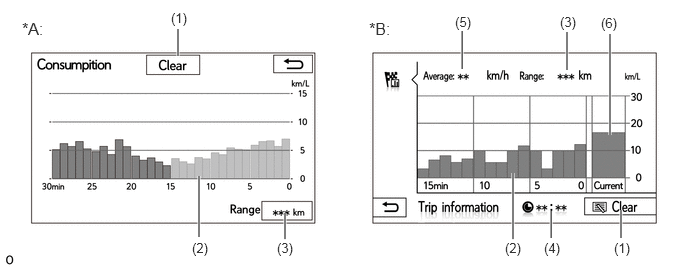
| *A | Models without Extension Box | *B | Models with Extension Box |
| Item | Outline | |
|---|---|---|
| (1) | Clear Switch | Clears all past information. |
| (2) | Average Fuel Consumption per Minute | ·
Displays the value that has been calculated by the combination meter assembly, which is based on the driven distance and the volume of fuel consumed (fuel injection signal), since the engine switch was turned on (IG). ·
Displays the average fuel consumption for the last minute or since clear was last selected. |
| (3) | Range | Displays the approximate drivable distance. |
| (4) | Elapsed Time | Displays the value that has been calculated by the combination meter assembly, which is based on the time elapsed since the engine switch was turned on (IG). |
| (5) | Average Speed | Displays the value that has been calculated by the combination meter assembly, which is based on the distance driven and the time elapsed since the engine switch was turned on (IG). |
| (6) | Current Fuel Consumption per Minute | Displays the instantaneous (current) fuel consumption value that has been calculated by the combination meter assembly, which is based on the driven distance and the volume of fuel consumed (fuel injection signal), provided that the engine switch is on (IG). |
Setup Screen
The settings for the functions of the navigation receiver assembly are available from the "Setup" screen.
| Item | Function |
|---|---|
| General Settings | ·
System Time: Select to change the time zone and set the daylight saving time to on/off. ·
Language: Select to change the language. ·
Units of Measurement: Select to change the unit of measure for distance/fuel consumption. ·
Beep: Select to sound beeps. ·
Color Theme: Select to change the screen button color. ·
Keyboard Layout: The keyboard layout can be changed. ·
Auto Change to Home Screen: Select to set automatic screen changes from the audio control screen to the home screen to on/off. When set to on, the screen will automatically return to the home screen from the audio control screen after 20 seconds. ·
Animation: Select to turn the animations on/off. ·
Customize Startup Image: Select to customize the startup images. ·
Customize Screen Off Image: Select to customize the screen off image. ·
Delete Personal Data: Select to delete personal data. ·
Software Update: Select to update software versions. ·
Software Information: Select to display the software information. Notices related to third party software used in this product are enlisted. ·
Default: Select to reset all setup items. |
| Home Screen Setting | The layout and display items on the home screen can be changed. |
| Voice Settings | ·
The voice guidance volume can be adjusted. ·
Voice guidance during route guidance can be set. ·
Automatic volume settings for voice guidance while driving at high speeds can be set. ·
Voice recognition prompts can be set. ·
Voice prompt interrupt can be set. |
| Display Settings | The brightness, contrast, tone and color of the screen can be adjusted and the display can be changed to day or night mode. |
| Bluetooth Settings | ·
Bluetooth device registration settings can be changed: -
Register a Bluetooth device -
Delete a Bluetooth device -
Connect a Bluetooth device -
Edit a Bluetooth device ·
Bluetooth system settings can be changed: -
Automatic connection to a Bluetooth device -
Bluetooth audio player connection method -
Bluetooth device name -
Bluetooth device PIN-code -
Bluetooth device address -
Bluetooth device phone number -
Display of Bluetooth device connection status -
Bluetooth device profile |
| Telephone Settings | ·
A Bluetooth phone can be registered or connected. ·
Phone sound settings can be changed: -
Ring tone -
Ring tone volume -
In-call volume ·
Contact/Call history settings can be changed: -
Automatic contact/history transfer function settings when a PBAP-compatible Bluetooth phone is connected -
Contacts update -
Contacts sorting -
Favorites list registration -
Contacts deletion from the favorites list -
Contact image display -
Call history deletion -
New contact addition to the contact list -
Contact list editing -
Contact deletion from the contact list -
Voice tag management ·
Telephone display settings can be changed: -
Incoming call display -
Display of the automatic contact/history transfer completion message |
| Audio Settings | ·
FM radio settings can be changed: -
The FM radio text feature can be set ·
An input terminal for iPod audio sound signals can be selected. ·
An input video signal format can be selected. ·
The display of cover art can be set to on/off. |
| Navigation Settings | The navigation settings can be used to:
·
Set detailed navigation settings such as average cruising speed. ·
Set detailed navigation settings such as displayed POI icon categories. ·
Set detailed navigation settings such as display of 3D landmarks. ·
Set the display of the speed limit of the road currently being used. ·
Set the function that magnifies the map scale as the vehicle guidance point. ·
Set the display of cautionary messages (if the route includes traffic restrictions, seasonally restricted roads, etc.). ·
Set the display of pop-up information. ·
Manually adjust the current vehicle position mark. ·
Display the coverage areas and legal information. ·
Change the settings for dragging and flicking operations. |
- HINT:
-
Some functions cannot be use depending on models.
| Item | Function |
|---|---|
| General Settings | ·
System Time: The time zone and the on/off setting of daylight saving time can be changed. ·
Beep: The selection sound can be set. ·
Color Theme: The color of the screen buttons can be changed. ·
Keyboard Layout: The keyboard layout can be changed. ·
Auto Change to Home Screen: Automatic screen changes can be turned on or off. When turned on, the screen automatically returns to the home screen from the audio/visual control screen after 20 seconds of inactivity. ·
Touch Switch Sensitivity: The user can adjust the sensitivity level of the electrostatic type switches. ·
Animation: The user can turn on or off some animations displayed on the screens, such as ones for list scrolling. ·
Customize Startup Image: The startup images can be set. ·
Customize Screen Off Image: The screen off images can be set. ·
Delete Personal Data: Registered information (personal data) can be cleared. ·
Software Update: The software versions can be updated. ·
Software Information: Third party software information used in the navigation system, such as notices, can be displayed. |
| Home Screen Setting | The layout and display items on the home screen can be changed. |
| Voice Settings | ·
The voice guidance volume can be adjusted. ·
Voice guidance during route guidance can be set. ·
Voice recognition prompts can be set. |
| Display Settings | The brightness, contrast, tone and color of the screen can be adjusted and the display can be changed to day or night mode. |
| Bluetooth Settings | ·
Bluetooth device registration settings can be changed: -
Register a Bluetooth device -
Delete a Bluetooth device -
Connect a Bluetooth device -
Edit a Bluetooth device ·
Bluetooth system settings can be changed: -
Automatic connection to a Bluetooth device -
Bluetooth device name -
Bluetooth device PIN-code -
Bluetooth device address -
Display of Bluetooth device connection status -
Bluetooth device profile |
| Telephone Settings | ·
A Bluetooth phone can be registered or connected. ·
Phone sound settings can be changed: -
Ring tone -
Ring tone volume -
In-call volume ·
Contact/Call history settings can be changed: -
Automatic contact/history transfer function settings when a PBAP-compatible Bluetooth phone is connected -
Contacts update -
Contacts sorting -
Favorites list registration -
Contacts deletion from the favorites list -
Contact image display -
Call history deletion -
New contact addition to the contact list -
Contact list editing -
Contact deletion from the contact list -
Voice tag management ·
Telephone display settings can be changed: -
Incoming call display -
Display of the automatic contact/history transfer completion message |
| Audio Settings | ·
FM radio settings can be changed: -
The FM radio text feature can be set ·
DAB settings can be changed: -
The station list can be updated. -
L-band in the tune range can be set. -
Setting to automatically seek a DAB station that regularly broadcasts traffic information and station broadcasts can be set. -
Setting to automatically select a DAB station providing good reception if current reception worsens can be set. -
The DAB text feature can be set. ·
An input terminal for iPod audio sound signals can be selected. ·
An input video signal format can be selected. ·
The display of cover art can be set to on/off. |
| Navigation Settings | The navigation settings can be used to:
·
Set detailed navigation settings such as average cruising speed. ·
Set detailed navigation settings such as displayed POI icon categories. ·
Set detailed navigation settings such as display of 3D landmarks. ·
Set the display of the speed limit of the road currently being used. ·
Set the function that magnifies the map scale as the vehicle guidance point. ·
Set the display of cautionary messages (if the route includes traffic restrictions, seasonally restricted roads, etc.). ·
Set the display of pop-up information. ·
Manually adjust the current vehicle position mark. ·
Display the coverage areas and legal information. ·
Change the settings for dragging and flicking operations. |
DIAGNOSIS
For details on the procedure required to enter the Service Menu screen, refer to the Repair Manual.