AUDIO AND VISUAL SYSTEM > DTC CHECK / CLEAR |
| START DIAGNOSTIC MODE |
There are 2 methods to start diagnostic mode. Start the mode by using one of them.
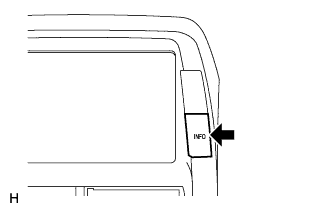
![]() |
Method 1
Start the hybrid system.
While pressing and holding the "INFO" switch, operate the light control switch OFF → TAIL → OFF → TAIL → OFF → TAIL → OFF.
The diagnostic mode starts and the "Service Check" screen will be displayed. The service inspection starts automatically and the result will be displayed.
![]() |
Method 2
Start the hybrid system.
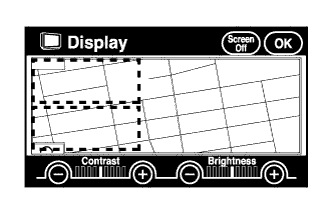
Press the "Display" switch.
On the display adjustment screen, touch the corners of the screen in the following order: upper left → lower left → upper left → lower left → upper left → lower left.
The diagnostic mode starts and the "Service Check" screen will be displayed. The service inspection starts automatically and the result will be displayed.
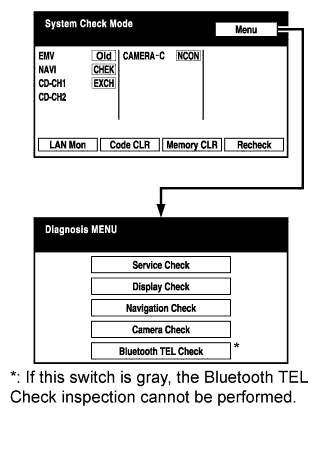
Diagnosis MENU
Press the menu switch on the service check screen. The diagnostic window will be displayed.
| FINISH DIAGNOSTIC MODE |
Use one of the following 2 methods to finish the diagnostic mode.
Turn the power switch OFF.
Press the "Display" switch for 3 seconds.
| SYSTEM CHECK MODE (DTC CHECK) |
![]() |
Start the diagnostic mode.
![]() |
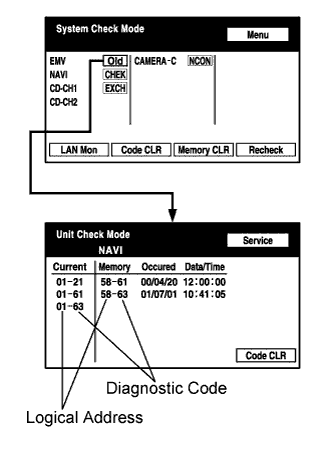
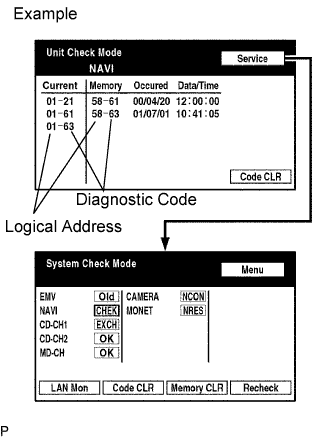
Read the service check result.
If all the devices report as "EXCH", "CHEK" or "Old", touch the display to check the contents in the "Unit Check Mode" screen and write them into the customer problem analysis check sheet.
![]() |
![]() |
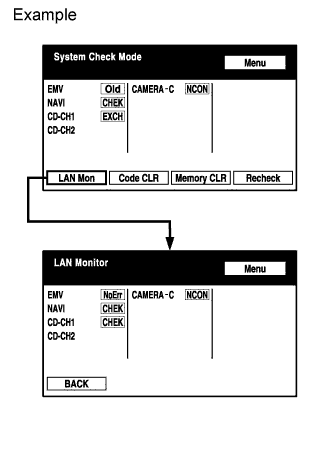
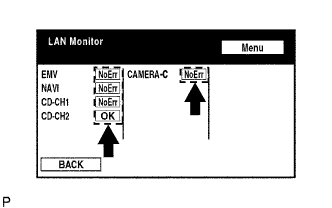
Read the communication diagnostic check result.
Return to the "System Check Mode", and press "LAN Mon" switch to enter the LAN monitor window.
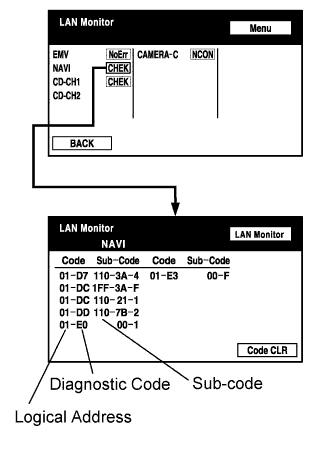
![]() |
If the result is "CHEK" or "Old", touch this display to check the contents on the "Unit Check Mode" screen and write them into the customer problem analysis check sheet.
| SERVICE CHECK MODE (DTC CLEAR/RECHECK) |
![]() |
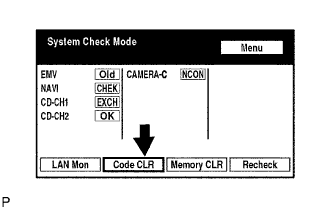
Clear DTC
Press the "Code CLR" switch for 3 seconds.
![]() |
Check result is cleared.
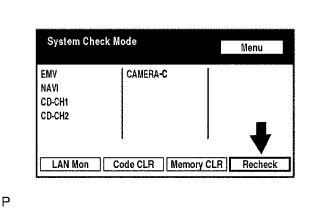
Recheck
Press the "Recheck" switch.
![]() |
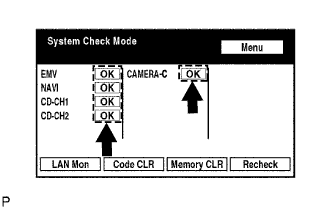
Confirm that all diagnostic codes are "OK" when the check results are displayed.
If a code other than "OK" is displayed, troubleshoot again.
![]() |
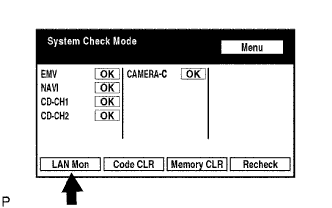
Press "LAN Mon" to switch to "LAN Monitor" mode.
![]() |
Confirm that all diagnostic codes are "No Err".
If a code other than "No Err" is displayed, troubleshoot again.