NAVIGATION / MULTI INFO DISPLAY NAVIGATION SYSTEM(for HDD) GPS Mark is not Displayed
PROCEDURE
Check the cabin for any object that might interrupt radio reception or additional devices which use radio waves on the instrument panel. If such an object exists, remove it and check if the GPS mark reappears.
- HINT:
-
The GPS uses extremely faint radio waves originating from satellites. If the signal is interrupted by obstructions or other radio waves, the GPS may not be able to properly receive the signal.
- Result:
Proceed to The GPS mark appears The GPS mark does not appear
The GPS mark appears
The GPS mark does not appear
Check if the vehicle is in a location where GPS signal reception is poor. If the vehicle is in such a place, relocate the vehicle and check if the GPS mark reappears.
- HINT:
-
The GPS uses 24 satellites in 6 orbits. At any point in time, 4 satellites should be able to pinpoint your vehicle. However, GPS signals may not reach the vehicle due to influence from the surroundings, vehicle direction and time. For examples, see the following illustration.
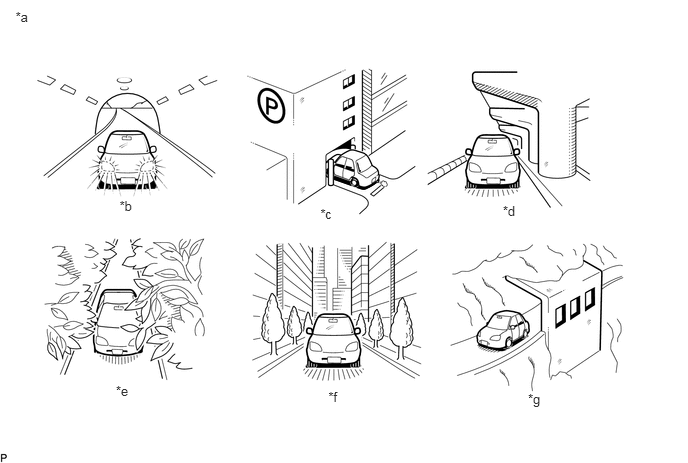
| *a | Example | *b | In a tunnel |
| *c | In a building | *d | Under an overpass |
| *e | On a forest or tree-lined path | *f | Between tall buildings |
| *g | Under a cliff or overhang | - | - |
- Result:
Proceed to The GPS mark is displayed The GPS mark is not displayed
The GPS mark is displayed
The GPS mark is not displayed
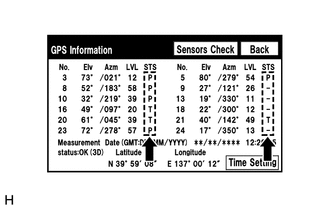
Enter the "GPS Information" screen. Refer to Check GPS&Vehicle Sensors in Operation Check.
Check how many of the following codes appear in the "STS" column.
- HINT:
-
T, U or P appears.
- Result:
Proceed to At least 3 codes appear Less than 3 codes appear
At least 3 codes appear
Less than 3 codes appear