 |
Display the "Display Settings" screen.
NAVIGATION SYSTEM > Display does not Dim when Light Control Switch is Turned ON |
| 1.CHECK IMAGE QUALITY SETTING |
|
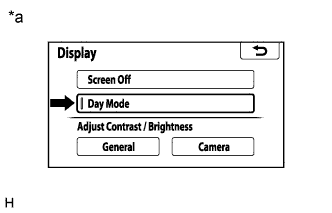
Display the "Display Settings" screen.
Turn the light control switch to the tail or head position.
Check if "Day Mode" on the display adjustment screen is on.
| Result | Proceed to |
| "Day Mode" setting is on | A |
| "Day Mode" setting is off | B |
| *a | Example |
|
| ||||
| A | ||
 | ||
| ||
| 2.CHECK IMAGE QUALITY SETTING |
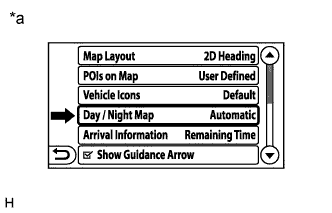 |
Display the "Map Settings" screen.
Turn the light control switch to the tail position.
Check if "Day/Night Map" on the display adjustment screen is on.
| Result | Proceed to |
| "Day" is on | A |
| "Night" is on | B |
| "Automatic" is on |
| *a | Example |
|
| ||||
| A | ||
| ||
| ||
| 3.CHECK VEHICLE SIGNAL (OPERATION CHECK) |
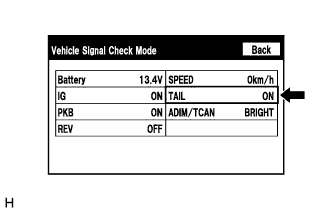 |
Enter the "Vehicle Signal Check Mode" screen. Refer to Check Vehicle Signal in Operation Check (Click here).
Check that the display changes between ON and OFF according to the light control switch operation.
| Light Control Switch | Display |
| Tail or head | ON |
| Off | OFF |
|
| ||||
| OK | ||
| ||
| ||

