Home › BODY ELECTRICAL › NAVIGATION › NAVIGATION SYSTEM (for DVD)

NAVIGATION SYSTEM (for DVD) > Traffic Information is not Displayed

for Preparation Click here


INSPECTION PROCEDURE

NOTICE:
  1. Traffic information requires payment. An "XM Nav Traffic Premium Package" contract must be made between the satellite radio service and the user. If the contract expires, traffic information will not be available.
  2. Traffic information does not apply to all roads, only main roads. For the latest information on coverage areas, contact the satellite radio service.
  3. After replacing the stereo component tuner assembly of vehicles subscribed to pay-type satellite radio broadcasts, registration of the XM radio ID is necessary.

1.CHECK DISPLAY
  1. Check the traffic information screen.
    Result 
    Result
    Proceed to
    Traffic information is not displayed
    A
    Traffic information is displayed but is not updated
    B


B
Go to step 7
A


2.CHECK SURROUNDINGS

I100196E18

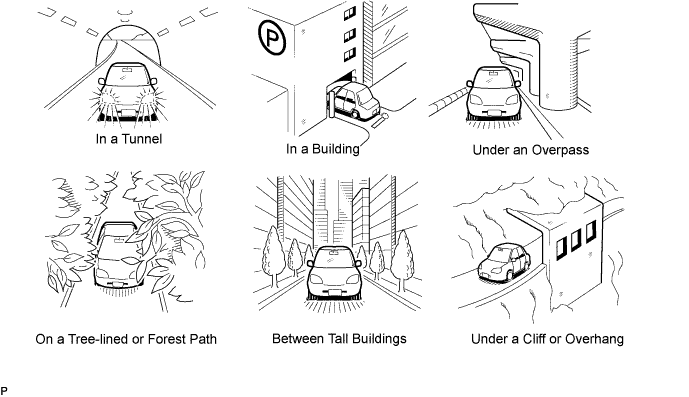
  1. Check if the vehicle is in an environment where reception is difficult due to something blocking the area above the vehicle.

    HINT:
    If the area above the vehicle is blocked, such as when in a building or tunnel, reception may not be possible.

    OK:
    Area above vehicle is not blocked.


NG
END (MOVE VEHICLE TO LOCATION WHERE RECEPTION IS BETTER)
OK


3.CHECK COVERAGE AREA
  1. Check that your current position is within the traffic information coverage area.

    OK:
    Vehicle is within coverage area.


NG
MOVE TO WITHIN COVERAGE AREA (FOR LATEST COVERAGE AREA, CONFIRM WITH RADIO STATION)
OK


4.CHECK SETTINGS OF TRAFFIC INFORMATION


    E176563
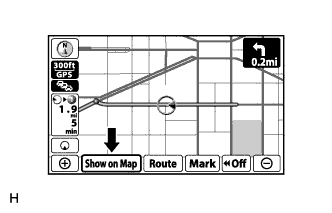
  1. Press "Show on Map".


    E176564
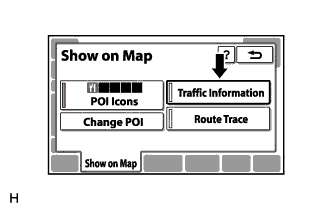
  1. Check if "Traffic Information" is on.

    OK:
    "Traffic Information" is on.


NG
TURN "Traffic Information" on
OK


5.CHECK CONTRACT CONDITIONS
  1. Check if the "XM Nav Traffic Premium Package" contract has been extended, or if the contract period has ended.

    OK:
    Contract is valid.


NG
TO RECEIVE TRAFFIC INFORMATION, CONTRACT MUST BE MADE WITH SATELLITE RADIO SERVICE
OK


6.PERFORM ACTIVATION REFRESH
  1. Perform activation refresh by referring to the satellite radio service web site (http://www.xmradio.com/refresh/).

    HINT:
    The XM radio ID that is necessary to perform activation refresh can be displayed when CH000 is selected on the satellite radio.

    OK:
    Malfunction disappears.


NG
PROCEED TO NEXT SUSPECTED AREA SHOWN IN PROBLEM SYMPTOMS TABLE (Click here)
OK

END 

7.CHECK SURROUNDINGS

I100196E18

  1. Check if the vehicle is in an environment where reception is difficult due to something blocking the area above the vehicle.

    HINT:
    If the area above the vehicle is blocked, such as when in a building or tunnel, reception may not be possible.

    OK:
    Area above vehicle is not blocked.


NG
END (TRAFFIC INFORMATION IS NOT DISPLAYED BECAUSE AREA IS NOT IN COVERAGE AREA)
OK


8.CHECK COVERAGE AREA
  1. Check if the area on the display that does not match actual traffic conditions is within the XM Nav Traffic coverage area.

    OK:
    Area that does not match is within coverage area.


NG
END (MOVE VEHICLE TO LOCATION WHERE RECEPTION IS BETTER)
OK


9.CHECK CONTRACT CONDITIONS
  1. Check if the "XM Nav Traffic Premium Package" contract has been extended, or if the contract period has ended.

    OK:
    Contract is valid.


NG
TO RECEIVE TRAFFIC INFORMATION, CONTRACT MUST BE MADE WITH SATELLITE RADIO SERVICE
OK


10.PERFORM ACTIVATION REFRESH
  1. Perform activation refresh by referring to the satellite radio service web site (http://www.xmradio.com/refresh/).

    OK:
    Malfunction disappears.


NG
Go to step 11
OK

END 

11.CHECK DISPLAY AGAIN
  1. Wait for 2.5 minutes, and check again if the actual traffic conditions match the display.

    OK:
    Actual traffic conditions match display.


NG
Go to step 12
OK

END (NAVTEQ HAS UPDATED DATA OF TRAFFIC CONDITIONS) 

12.CHECK DISPLAY AGAIN
  1. After 30 minutes have passed, check if all traffic information disappears.

    HINT:
    After traffic information updates have stopped, the navigation system continues displaying traffic information for a maximum of 30 minutes.

    Result 
    Result
    Proceed to
    All traffic information disappears.
    A
    Some traffic information is wrong.
    B
    Actual traffic conditions match display.
    C


B
NAVTEQ MAY NOT BE PROVIDING DATA VERSION OF CERTAIN TRAFFIC INFORMATION (DATA ERROR, PROBLEM, ETC.)

C
NAVTEQ HAS UPDATED DATA OF TRAFFIC CONDITIONS
A

END (MOVE VEHICLE TO LOCATION WHERE RECEPTION IS BETTER)