| Function |
Handsfree
System With Voice Recognition
| General Features |
| • |
This audio system supports Bluetooth®
hands-free and stereoheadset
features. |
| - |
HANDS-FREE feature : Making or receiving
calls wirelessly through voice
recognition. |
| - |
STEREO-HEADSET feature : Playing music from
cellular phones (that supports A2DP feature)
wirelessly. |
| • |
Voice recognition engine of the Bluetooth®
system supports 3 types of
languages: |
| • |
English |
| • |
French |
| • |
Spanish |
|

Receiving
a Phone Call
When receiving a phone
call, a ringtone is audible from speakers and the audio system changes
into telephone mode.
When receiving a phone
call, “Incoming call” message and incoming phone number (if available) are
displayed on the audio.
| • |
To Answer a
Call: |
| - |
Press  button on the steering
wheel. |
| • |
To Reject a
Call: |
| - |
Press  button on the steering
wheel. |
| • |
To Adjust Ring
Volume: |
| - |
Use VOLUME buttons on the steering
wheel. |
| • |
To Transfer a Call to the Phone (Secret
Call): |
| - |
Press and hold button on the steering wheel until the audio system
transfers a call to the phone. |
Talking
on the Phone
When talking on the
phone, “Active Call” message and the other party’s phone number (if
available) are displayed on the audio.
| • |
To Finish a
Call |
| - |
Press button on the steering
wheel. |
In the following situations, you or the
other party may have difficulty hearing each other:
|
Bluetooth®
Audio Music Streaming
The audio system
supports Bluetooth® A2DP (Audio Advanced Distribution Profile) and AVRCP
(Audio Video Remote Control Profile) technologies.
Both profiles provide
steaming of music via compatible “PAIRED” Bluetooth® Cellular
phone.
To stream music from
the Bluetooth® cellular phone, play your music files on your cellular
phone according to your cellular phone user’s manual and press the
"CD/AUX" button on the audio system until “MP3 play” is displayed on the
LCD.
The audio system head
unit displays ‘MP3 MODE’.
|
Phone
Setup
All Bluetooth® related
operations can be performed in PHONE menu.
| 1. |
Push the "SETUP" button to enter SETUP
mode. |
| 2. |
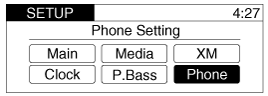
Rotate the "TUNE" knob to move the cursor
between items and push the "ENTER" button to select
"Phone"
|
| 3. |
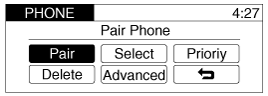
Rotate the "TUNE" knob to move the cursor
between items and push the "ENTER" button to select a desired
item.
|
| • |
Pairing a phone
Before using Bluetooth® features, the phone
must be paired with the audio system. Up to 5 phones can be paired
with the system.
|
| 1. |
Press "SETUP" button to enter SETUP
mode. |
| 2. |
Select “Phone”, then “Pair”in PHONE
menu. |
| 3. |
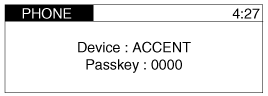
The audio displays “Device : [ACCENT]
Passkey: 0000” |
| 4. |
Search and select the device name in your
mobile phone to start the pairing process.
|
| • |
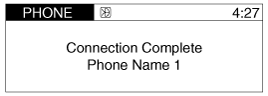
Connecting a phone
When the Bluetooth® system is enabled, the
phone previously used is automatically selected and re-connected. If
you want to select different phone previously paired, the phone can
be selected through “Select Phone” menu.
Only a selected phone can be used with the
hands-free system at a time. |
| 1. |
Press "SETUP" button to enter SETUP
mode. |
| 2. |
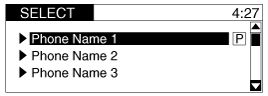
Select “Phone”, then “Select” in PHONE
menu.
|
| 3. |
Select desired phone name from the list
shown. |
| 4. |
The Bluetooth® icon appears on the upper
side of audio display when a phone is connected.
|
| • |
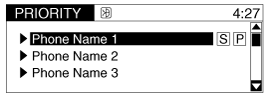
Changing Priority
If several phones are paired with the audio
system, the system attempts to connect following order when the
Bluetooth® system is enabled: |
| 1. |
“Priority” checked
phone. |
| 2. |
Previously connected
phone |
| 3. |
Selecting
priority. |
| 1. |
Press "SETUP" button to enter SETUP
mode. |
| 2. |
Select “Phone”, then “Priority” in PHONE
menu. |
| 3. |
Select desired phone name from the list
shown.
|
| • |
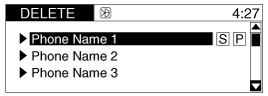
Deleting a Phone
The paired phone can be
deleted. |
| - |
When the phone is deleted, all the
information associated with that phone is also deleted (including
phonebook). |
| - |
If you want to use the deleted phone with
the audio system again, pairing procedure must be completed once
more. |
| 1. |
Press "SETUP" button to enter SETUP
mode. |
| 2. |
Select “Phone”, then “Delete” in PHONE
menu. |
| 3. |
Select desired phone name from the list
shown.
|
| • |
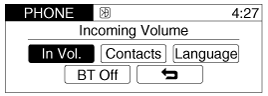
Advanced Settings
After pressing the "SETUP" button, select
“Phone” menu. while in PHONE menu, select the “Advanced” menu to
make Bluetooth® Phone settings.
|
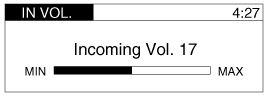
Incoming
Volume (Bluetooth® call volume adjustments)
While in ADVANCE menu,
select “In Vol.” Use the knob key to set the desired volume and press the
"ENTER" button.
Contacts
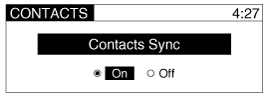
Sync (Automatic Phonebook download setting)
While in ADVANCED
menu, select “Contacts” To automatically save the contacts and call
history in your mobile phone each time you connect a mobile device, select
ON. If you do not wish for automatic download, select OFF.
It’s not available to
make a phone call by Bluetooth audio system while the phonebook is being
downloaded.
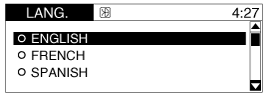
Language
of Bluetooth® voice recognition
While in ADVANCE menu,
press “Language”. To change the language, select the desired language and
press the "ENTER" button.
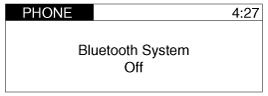
Bluetooth®
system off
While in ADVANCEDmenu,
select “BT Off” to turn off the Bluetooth® System.
Voice
Recognition Activation
| • |
The voice recognition engine contained in
the Bluetooth® System can be activated in the following
conditions: |
| - |
Button Activation
The voice recognition system will be active
when the  button is pressed and after the sound of a
Beep. |
| - |
Active Listening
The voice recognition system will be active
for a period of time when the Voice Recognition system has asked for
a customer response. |
| • |
The system can recognize single digits from
zero to nine while number greater than ten will not be
recognized. |
| • |
The system shall cancel voice recognition
mode in following cases : When pressing the button and saying cancel following the beep. When not
making a call and pressing the button. When voice recognition has failed 3
consecutive times. |
| • |
At any time if you say “help”, the system
will announce what commands are
available. |
Menu
tree
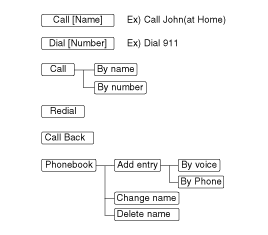
The menu tree
identifies available voice recognition Bluetooth® functions.
※ Tip
■ Voice
Operation
To get the best
performance out of the Voice Recognition System, observe the
followings:
| - |
Keep the interior of the vehicle as quiet as
possible. Close the window to eliminate surrounding noise (traffic
noise, vibration sounds, etc), which may disturb recognizing the
voice command correctly. |
| - |
Speak a command after a beep sound within 5
seconds. Otherwise the command will not be received
properly. |
| - |
Speak in a natural voice without pausing
between words. |
| - |
While receiving voice commands, press the
button on the steering wheel remote controller to terminate
guidance. Voice command will convert back to waiting mode to allow
the user to say a new voice
command. |
Making
a Phone Call
| • |
Direct Calling
|
| 1. |
Press button. |
| 2. |
Say the following
command. |
| - |
Call |
| - |
Call |
| - |
Call |
| - |
Call
|
| • |
Calling by Name
A phone call can be made by speaking names
registered in the audio system. |
| 1. |
Press button. |
| 2. |
Say “Call”. |
| 3. |
Say “By name” when
prompted. |
| 4. |
Say desired name (in Phonebook or voice
tag). |
| 5. |
Say desired location (phone number type).
Only stored locations can be
selected. |
| 6. |
Say “Yes” to confirm and make a
call. |
※ Tip
A shortcut to each of
the following functions is available:
1. Say “Call
Name”
| • |
Dialing by Number
A phone call can be made by dialing the
spoken numbers. The system can recognize single digits from zero to
nine. |
| 1. |
Press button. |
| 2. |
Say “Call”. |
| 3. |
Say “By number” when
prompted. |
| 4. |
Say desired phone
numbers. |
| 5. |
Say “Dial” to complete the number and make a
call. |
※ Tip
A shortcut to each of
the following functions is available:
1. Say “Dial
Number”
2. Say “Dial
”
Phone
Book (In-Vehicle)
| • |
Adding entry by voice
Phone numbers and voice tags can be
registered. Entries registered in the phone can also be
transferred. |
| 1. |
Press button. |
| 2. |
Say
"Phonebook". |
| - |
The system replies with all available
commands. |
| - |
To skip the information message,
press
again and then a beep is heard. |
| 3. |
Say “Add
Entry”. |
| 4. |
Say “By Voice” to
proceed. |
| 5. |
Say the name of the entry when
prompted. |
| 6. |
Say “Yes” to
confirm. |
| 7. |
Say the phone number of that entry when
prompted. |
| 8. |
Say “Store” if phone number input is
finished. |
| 9. |
Say a phone number type.“Home”, “Work”,
“Mobile”, “Other” or “Default” is
available. |
| 10. |
Say “Yes” to complete adding
entry. |
| 11. |
Say “Yes” to store additional location for
this contact, or say “Cancel” to finish the process.
|
| • |
Adding Entry by
Phone |
| 1. |
Press button. |
| 2. |
Say
"Phonebook". |
| 3. |
Say "Add Entry" after
prompt. |
| 4. |
Say "By Phone" to
proceed. |
| 5. |
Say “Yes” to
confirm. |
| 6. |
Your phone will start to transfer
phone/contact list to the audio system. This process may take up to
10 minutes depending on the phone model and number of
entries |
| 7. |
Wait till the audio displays “Transfer
Complete” message. |
| • |
Changing Name
The registered names can be
modified. |
| 1. |
Press button. |
| 2. |
Say
“Phonebook”. |
| 3. |
Say “Change Name” after
prompt. |
| 4. |
Say the name of the entry (voice
tag). |
| 5. |
Say “Yes” to
confirm. |
| 6. |
Say new desired
name. |
| • |
Deleting Name
The registered names can be
deleted. |
| 1. |
Press button. |
| 2. |
Say
“Phonebook”. |
| 3. |
Say “Delete Name” after
prompt. |
| 4. |
Say the name of the entry (voice
tag). |
| 5. |
Say “Yes” to
confirm. |
Bluetooth® Audio Speaker Adaptation
Speaker adaptation
will improve performance of voice recognition system to a particular user
voice.
This will degrade the
performance for other users.
| • |
Record |
| 1. |
Press button for 10sec. |
| 2. |
Say “Record
profile”. |
| 3. |
Say “Yes”. |
| 4. |
Say the word displayed on
Radio. |
| • |
Delete |
| 1. |
Press button for 10sec. |
| 2. |
Say “Delete
profile”. |
| 3. |
Say
“Yes”. |