| Function |
| Audio Bluetooth System |
General
Features
| • |
This audio system supports Bluetooth®
hands-free and stereo-headset
features. |
| - |
HANDS-FREE feature : Making or receiving
calls wirelessly. |
| - |
STEREO-HEADSET feature : Playing music from
cellular phones (that supports A2DP feature)
wirelessly. |
|

Phone
Setup
All Bluetooth®-related
operations can be performed in PHONE menu.
| 1. |
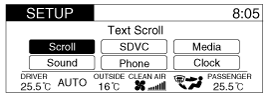
Push the "SETUP" button to enter SETUP
mode.
|
| 2. |
Select "PHONE" item by using
 ,  button, then
push the "OK" button.
|
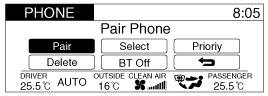
| 3. |
Select desired item by using , button, then
push the "OK" button. |
| • |
Pairing a phone
Before using Bluetooth® features, the phone
must be paired (registered) with the audio system. Up to 5 phones
can be paired with the system.
|
| 1. |
Press "SETUP" button to enter SETUP
mode. |
| 2. |
Select "Phone", then "Pair" in PHONE
menu. |
| 3. |
The audio displays "searching ---- passkey :
0000" |
| 4. |
Search the Bluetooth® system on your phone.
Your phone should display your [vehicle model name] on the
Bluetooth® device list.Then attempt pairing on your
phone.
|
| • |
Connecting a phone
When the Bluetooth® system is enabled, the
phone previously used is automatically selected and re-connected. If
you want to select different phone previously paired, the phone can
be selected through "Select Phone" menu.
Only a selected phone can be used with the
hands-free system at a time. |
| 1. |
Press "SETUP" button to enter SETUP
mode. |
| 2. |
Select "Phone", then "Select" in PHONE
menu. |
| 3. |
Select desired phone name from the list
shown. |
| • |
Deleting a Phone
The paired phone can be
deleted. |
| - |
When the phone is deleted, all the
information associated with that phone is also deleted (including
phonebook). |
| - |
If you want to use the deleted phone with
the audio system again, pairing procedure must be completed once
more. |
| 1. |
Press "SETUP" button to enter SETUP
mode. |
| 2. |
Select "Phone", then "Delete" in PHONE
menu. |
| 3. |
Select desired phone name from the list
shown. |
| • |
Changing Priority
If several phones are paired with the audio
system, the system attempts to connect following order when the
Bluetooth® system is enabled:
1) "Priority" checked phone.
2) Previously connected phone
3) Gives up auto
connection. |
| 1. |
Press "SETUP" button to enter SETUP
mode. |
| 2. |
Select "Phone", then "Priority" in PHONE
menu. |
| 3. |
Select desired phone name from the list
shown. |
| • |
Turning Bluetooth® ON/OFF
Bluetooth® system can be enabled (ON) or
disabled (OFF) by this menu. |
| - |
If Bluetooth® is disabled, all the commands
related to Bluetooth® system prompts whether you wish to turn
Bluetooth® ON or not. |
| 1. |
Press "SETUP" button to enter SETUP
mode. |
| 2. |
Select "Phone", then "BT Off" in PHONE
menu. |