Mobile Telemetics System (MTS)
Hyundai motor companies
are now faced with the task of shifting their paradigm from
vehicle-centered services to customer valuecentered services, with the
ultimate goal of securing global leadership in the fi eld of vehicle IT
and telematics.
Hyundai Motor plans to
achieve this by realizing a terminal platform fl exible to changes in IT
technology, cooperating with global IT companies, creating an eco-system
and providing the latest contents & services based on an open
environment.
Blue Link is a dynamic,
telematics technology that allows Hyundai vehicles to send—and
receive—important and useful information.
The system uses an
enhanced cellular network, with automatic roaming, that optimizes
connections and prioritizes emergency requests.
With Blue Link you
get…
| - |
Automatic emergency assistance, in the
unfortunate event of a collision. |
| - |
The convenience of point-of-interest search
and navigation assistance, as well as the ability to remotely
operate various vehicle features. |
| - |
The peace of mind of self-diagnostic vehicle
reports, and more. |
Main Features
| 1. |
TMU Concept : Registered driver request the
Service from Call Center (Safety and Security, TBT service,
etc.) |
| 2. |
GPS & CDMA Communication : Connect the
Call Center by CDMA. Use Simple Navigation System by GPS & CDMA
(Only Audio type). |
| 3. |
Integrate a Voice Recognition &
Communication : User can operate the service by Speech Recognition
(only Audio) User can use downloaded POI Data by CDMA (only
AVN). |
| 4. |
Control BCM by Call Center Service : Door
Lock/Unlock, Horn/Light, Remote Start/Stop be operate by
Service. |
System Components
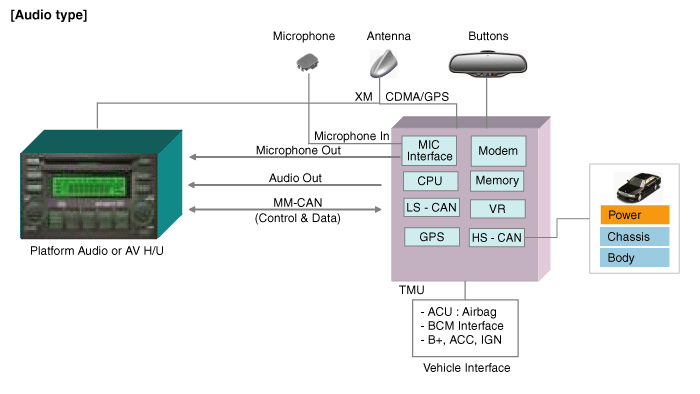
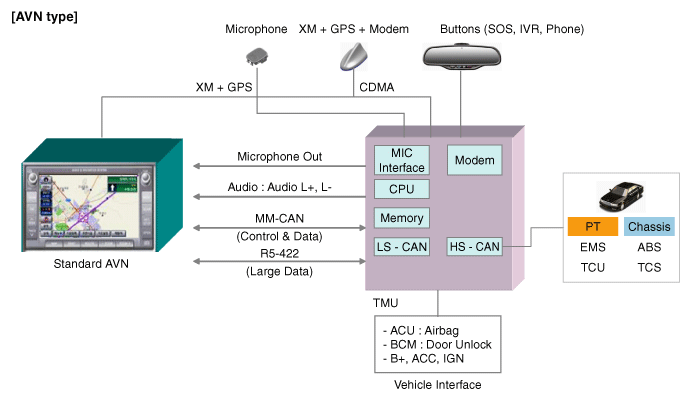
Using procedures
| 1. |
Enrolling in Blue Link
After the enrollment process, you can use to
access your Blue Link preferences.
|
For more detail procedure, please refer
to the Blue Link owner's
manual. | |
| 2. |
Subscribe the Blue Link Packages
Blue Link services come in three groupings, or
packages:
Assurance
|
• Automatic Collision Notification and
Assistance
• SOS Emergency
Assist
• Enhanced Roadside
Assist
• Monthly Vehicle
Report
|
Essentials
|
•
Convenience:
– Remote Door
Lock
– Remote Door
Unlock
– Remote
Horn/Lights
– Remote Vehicle
Start*
– Quick
Tips
– Location
Sharing
– Voice Text
Messaging
|
•
Vehicle Self Diagnostics:
–
Automatic Diagnostics Trouble Code
Notification
– Maintenance
Alert
– Recall
Advisor
– Service
Link
|
•
Safeguard:
– Stolen Vehicle
Recovery
– Stolen Vehicle
Slowdown
– Vehicle
Immobilization
– Valet
Alert
– Panic
Notification
– Alarm
Notification
–
Geo-Fence
– Speed
Alert
– Curfew
Alert
|
Guidance
|
• Point of Interest Search by Advanced Voice
Recognition
• Point of Interest Web
Search & Download
•
Turn-by-Turn Navigation**
• Daily
Route Guidance with Traffic Conditions
• Traffic
• Gas Station
Locations & Gas Prices
•
Eco-Coach
• Restaurant Ratings
& Locations
•
Weather
|
Owners can subscribe to Blue Link packages in
the following groupings;
| B. |
Assurance +
Essentials |
| C. |
Assurance + Essentials +
Guidance | |
| 3. |
Setting Blue Link preferences
Many Blue Link features, reports, or alerts
require setup, with input from you.
|
For more detail procedure, please refer
to the Blue Link owner's
manual. | |
| 4. |
Accessing Blue Link preferences
| (1) |
Smart Phone Mobile
Application
You can download the Blue Link mobile
app to your compatible smart phone.
For more detail procedure, please refer
to the Blue Link owner's
manual. |
| (2) |
In-car Application
Controls for Blue Link in-vehicle
voice-response use are located on the rearview
mirror.
|
For more detail procedure, please
refer to the Blue Link owner's
manual. | |
| (3) |
Web Application
Many Blue Link features can be
customized, activated, or accessed at
www.MyHyundai.com.
This is your important link to getting
the most out of your Blue Link system.
|
For more detail procedure, please
refer to the Blue Link owner's
manual. | | |
Service List
| 1. |
Safety and Security
Service Name
|
Service
Trigger
|
- Auto Collision Notification
|
In
the event of an accident or air bag deployment, ACN
notification will be triggered automatically.
|
- SOS – Emergency Assistance
|
It
will be triggered by manually pressing the SOS button on the
inside mirror.
It will connect you
to emergency assistance helper.
|
- Alarm/Panic Notification
|
when
the vehicle alarm system is activated, it will be
automatically triggered and inform to owner.
If the customer push the panic button of key FOB
near the vehicle, it will be triggered and notify that driver
or vehicle occupant may be in danger
|
- Enhanced roadside
|
Push
the Interactive Voice Recognition (IVR) button on the inside
mirror and ask the operator for help.
|
- Speed Alert
|
Customer can setup notification limit of vehicle
speed on the web or by asking operator using IVR
call.
|
- Remote Door Control – Lock
|
Customer can ask for Remote Door Lock service by
using the Smart Phone application or on the web(CWP) or asking
the operator by IVR call.
|
- Remote Door Control – Unlock
|
Customer can ask for Remote Door Unlock service by
using the Smart Phone application or on the web(CWP) or asking
the operator by IVR call.
|
- Remote Horn and Lights
|
Customer can ask Horn&Light or Light Only
services by using the Smart Phone application or on the
web(CWP) or asking the operator by IVR call.
|
- Stolen Vehicle Recovery
|
| -
|
In the event your vehicle or
reported stolen, to law enforcement authorities, the
BlueLink Customer Care Center can use the GPS system to
help pinpoint the exact location of the vechicle and
assist in its recovery. |
| -
|
The customer can ask stolen
vehicle recovery by using phone, or on the
web. | |
- Vehicle
Immobilization/Slowdown
|
This
service can be triggered on request by police
only
|
- Curfew Alert
|
The
customer can setup notification time interval that vehicle
being used on the web or by asking operator using IVR
call.
|
- Vehicle Remote Start
|
The
customer can ask remote start service by using the Smart Phone
application or on the web(CWP) or asking to operator by IVR
call. (Automatic transmission only)
|
|
| 2. |
Voice Recognition Module (VRM)
Service Name
|
Service
Trigger
|
-
Eco Coach
|
| 1. |
Showing the eco-coach
window.
The customer can see the average
efficiency curve of fuel consumption by selecting
eco-coach software button into the Info menu (AVN) or
saying "eco-coach on" using PTT button on the inside
mirror. (Audio)
| (1) |
AVN TMU
| A. |
Selecting eco-coach
button | |
| (2) |
Audio TMU
| A. |
Saying "Eco-coach on" menu
: Press PTT button on the inside mirror, after
heard "Please say command" sound, say "Eco-
coach
on" | | |
| 2. |
See the fuel consumption on the
web.
Refer to the telematics web
service manual for detail
information. | |
-
Maintenance Alert Notification
|
Refer
the telematics web service manual for detail information about
setup mile triggered to diagnostic service
|
-
Automated DTC notification
|
If the
vehicle has identified a problem, this information will be
sent for server automatically.
|
-
Recall and campaign advisor
|
When any
recall or campaign notification for his vehicle is sent by
HMC, it will be shown on the screen. The customer can hear
notification by using IVR call, after the notification, the
popup will be removed automatically.
|
-
Web- Based Diagnostics
|
The
customer can check the status of vehicle using telematics web
server.
Refer to the telematics
web service manual for more information.
|
-
Scheduled Diagnostics
|
There
are two kinds of scheduled diagnostic options. Please see
telematics web service manual for more
information.
|
|
| 3. |
Geographic Information System
(GIS)
Service Name
|
Service
Trigger
|
- Traffic Flow Accident Construction
Control
|
The
customer can hear construction or accident condition on the
driving road flow using IVR call. Please ask operator after
IVR call connected.
|
- Daily Route Guide with
Traffic
|
The
customer can hear traffic comparison between several road
using IVR call. Please ask Operator after IVR call connected.
Before listen this service, the customer should establish the
routes on the web. Refer to the telematics web service manual
for more information.
|
- Gas Station Location and Fuel
Prices
|
The
customer can hear Gas station location and Fuel prices using
IVR call, Point of Interests (POI) information can be
downloaded on the vehicle.
|
- Geo-Fence
|
The
customer can setup valid boundary of vehicle driving. It can
be used for Varlet geo-fence or normal geofence. Both can be
setup by web or by asking operator using IVR
call.
|
- Operator Navigation
|
The
customer can hear navigation using IVR call.
|
- POI by Guided IVR with Operator
Backup
|
POI
download can be requested via IVR call.
|
- POI Download via Web Portal
|
POI
download can be requested using web portal.
|
- POI Searching by IVR
(TMU and Phone)
|
POI
download can be requested via IVR call.
|
- Location Sharing
|
For
this service, the customer should pre-register a friend
information on the web. When your friend asks inform
he’s/she’s location to you, it can will be download by a kinds
of POI.
|
|
| 4. |
Operator Service & ETC
Service Name
|
Service
Trigger
|
-
IVR Owner’s Manual
|
The
Customer can hear how to using about any kinds of vehicle
Manual. Please ask operator on the IVR call.
|
-
Operator Assisted Owner's Manual
|
The
Customer can hear how to use any Manual. Please ask operator
on the IVR call.
|
-
Q-feedback
|
This is
a diagnostic services. When customer hear any unusual noise on
the vehicle, customer can ask to check the vehicle using IVR
call.
|
Service Name
|
Service
Trigger
|
-
Voice Text Messaging
|
Pair a
Bluetooth phone to the vehicle's Bluetooth
system.
Use the vehicle's Bluetooth
system to call, toll-free, 877-730-2896
|
-
Provisioning
|
In case
of being powered on for the first time at the Hyundai Factory
for North American or US Port.
|
-
TMU Disable Mode
|
"blueLink not active. Please call xxx-xxx-xxxx"
will be displayed when any button is pushed.
|
-
TMU Swap
|
The
Proper TMU (TeleMatics Unit) should be installed on the
vehicle.
"Incorrect Telematics Unit
Contact Dealer" will be displayed if incorrect TMU is
installed.
|
|
