NAVIGATION / MULTI INFO DISPLAY NAVIGATION SYSTEM Touch Panel Switch does not Function
PROCEDURE
Check if there is any foreign matter caught between the display and exterior frame of the multi-display.
- OK:
No foreign matter is caught between the display and exterior frame of the multi-display.
- HINT:
-
If there is foreign matter between the display and exterior frame of the multi-display, the touch panel will remain pressed, preventing touch switch operation.
- Result:
Proceed to OK NG
OK
NG
Check for foreign matter on the display.
- OK:
The display is clean.
- Result:
Proceed to OK NG
OK
NG
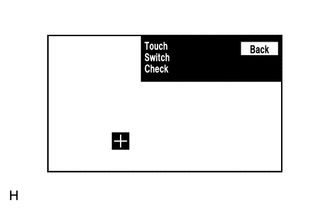
Enter the "Touch Switch Check" screen. Refer to Check Touch Switch in Operation Check.
Click hereAudio / Visual / Telematics>NAVIGATION / MULTI INFO DISPLAY>NAVIGATION SYSTEM>OPERATION CHECK
Touch the display in the area where the switch malfunction occurs.
- OK:
A "+" mark appears at the touched position.
- Result:
Proceed to OK NG
OK
Click hereAudio / Visual / Telematics>AUDIO / VIDEO>RADIO RECEIVER (for Radio and Display Type)>REMOVAL
NG
Click hereAudio / Visual / Telematics>NAVIGATION / MULTI INFO DISPLAY>NAVIGATION SYSTEM>PROBLEM SYMPTOMS TABLE