NAVIGATION / MULTI INFO DISPLAY NAVIGATION SYSTEM Touch Panel Switch does not Function
PROCEDURE
Check if there is any foreign matter caught between the display and exterior frame of the multi-display.
- OK:
No foreign matter is caught between the display and exterior frame of the multi-display.
- HINT:
-
If there is foreign matter between the display and exterior frame of the multi-display, the touch panel will remain pressed, preventing touch switch operation.
- Result:
Proceed to OK NG
OK
NG
Check for foreign matter on the display.
- Result:
Proceed to The display is clean The display is not clean
The display is clean
The display is not clean
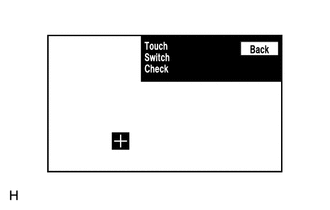
Enter the "Touch Switch Check" screen. Refer to Check Touch Switch in Operation Check.
Click hereAudio / Visual / Telematics>NAVIGATION / MULTI INFO DISPLAY>NAVIGATION SYSTEM>OPERATION CHECK
Touch the display in the area where the switch malfunction occurs.
- Result:
Proceed to A "+" mark appears at the touched position A "+" mark does not appear at the touched position
A "+" mark appears at the touched position
A "+" mark does not appear at the touched position
Click hereAudio / Visual / Telematics>NAVIGATION / MULTI INFO DISPLAY>NAVIGATION SYSTEM>PROBLEM SYMPTOMS TABLE