Display does not Dim when Light Control Switch is Turned ON
Circuit diagnosis · Vehicles built Aug 2013 – Jul 2014
Versions by build date: Aug 2013 – Jul 2014from Aug 2014
INSPECTION PROCEDURE
HINT:
When replacing the navigation receiver assembly, it is necessary to perform the vehicle contract setting for Connected Services (w/ Connected Services Function).
1. CHECK IMAGE QUALITY SETTING
Display the "Display" screen.
Turn the light control switch to the tail or head position.
Check if "Day Mode" on the display adjustment screen is on.
OK:
"Day Mode" setting is off
NG
TURN "Day Mode" SETTING OFF
OK
2. CHECK VEHICLE SIGNAL (OPERATION CHECK)
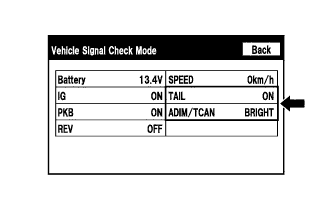
Enter the "Vehicle Signal Check Mode" screen. [Refer to Check Vehicle Signal in Operation Check (Click here)]
Check that the display for "TAIL" changes between ON and OFF according to the light control switch operation.
OK:
Light Control Switch
Display
Tail or head
ON
Off
OFF
HINT:
This display is updated once per second. As a result, it is normal for the display to lag behind the actual switch operation.
Check that the display for "ADIM/TCAN" changes between DIM and BRIGHT according to the light control switch operation.
OK:
Light Control Switch
Display
Tail or head
DIM
Off
BRIGHT
NG
PROCEED TO NEXT SUSPECTED AREA SHOWN IN PROBLEM SYMPTOMS TABLE (Click here)