NAVIGATION / MULTI INFO DISPLAY NAVIGATION SYSTEM(for Navigation Receiver Type) Display does not Dim when Light Control Switch is Turned ON
CAUTION / NOTICE / HINT
- HINT:
-
When replacing the navigation receiver assembly, it is necessary to perform the vehicle contract setting for Connected Services (w/ Connected Services Function).
PROCEDURE
Display the "Display" screen.
Turn the light control switch to the tail or head position.
Check if "Day Mode" on the display adjustment screen is on.
- OK:
"Day Mode" setting is off
OK
NG
Enter the "Vehicle Signal Check Mode" screen. [Refer to Check Vehicle Signal in Operation Check (See page Audio / Visual / Telematics>NAVIGATION / MULTI INFO DISPLAY>NAVIGATION SYSTEM (for Navigation Receiver Type)>OPERATION CHECK)]
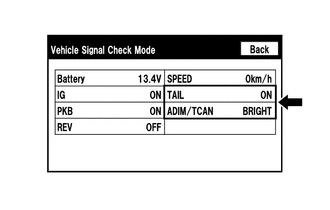
Check that the display for "TAIL" changes between ON and OFF according to the light control switch operation.
- OK:
Light Control Switch Display Tail or head ON Off OFF
- HINT:
-
This display is updated once per second. As a result, it is normal for the display to lag behind the actual switch operation.
Check that the display for "ADIM/TCAN" changes between DIM and BRIGHT according to the light control switch operation.
- OK:
Light Control Switch Display Tail or head DIM Off BRIGHT
OK
NG