| NG |  |
| TURN "Day Mode" SETTING OFF |
NAVIGATION SYSTEM > Display does not Dim when Light Control Switch is Turned ON |
| 1.CHECK IMAGE QUALITY SETTING |
Display the "Display" screen.
Turn the light control switch to the tail or head position.
Check if "Day Mode" on the display adjustment screen is on.
|
| ||||
| OK | |
 |
| 2.CHECK VEHICLE SIGNAL (OPERATION CHECK) |
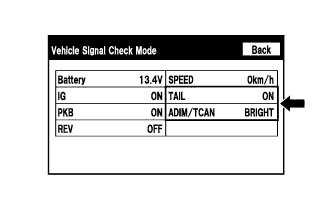 |
Enter the "Vehicle Signal Check Mode" screen. [Refer to Check Vehicle Signal in Operation Check (Click here)]
Check that the display for "TAIL" changes between ON and OFF according to the light control switch operation.
| Light Control Switch | Display |
| Tail or head | ON |
| Off | OFF |
Check that the display for "ADIM/TCAN" changes between DIM and BRIGHT according to the light control switch operation.
| Light Control Switch | Display |
| Tail or head | DIM |
| Off | BRIGHT |
| Result | Proceed to |
| OK (for Column Shift Type) | A |
| OK (for Floor Shift Type) | B |
| NG | C |
|
| ||||
|
| ||||
| A | ||
 | ||
| ||