 |
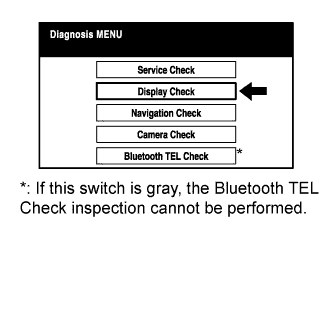
Select "Display Check" from the "Diagnosis MENU" screen.
AUDIO AND VISUAL SYSTEM > DISPLAY CHECK MODE |
| ENTER DIAGNOSTIC MODE (Click here) |
| DISPLAY CHECK |
|
Select "Display Check" from the "Diagnosis MENU" screen.
| COLOR BAR CHECK |
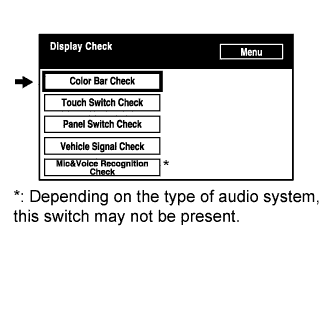 |
Select "Color Bar Check" from the "Display Check" screen.
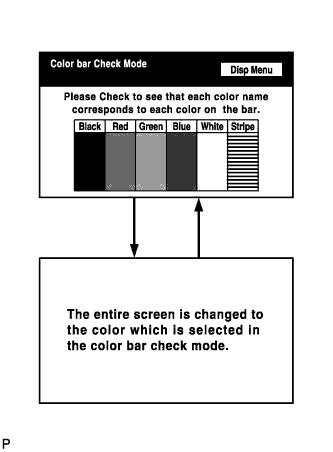 |
Select a color bar from the "Color Bar Check Mode" screen.
Check the display color.
| TOUCH SWITCH CHECK |
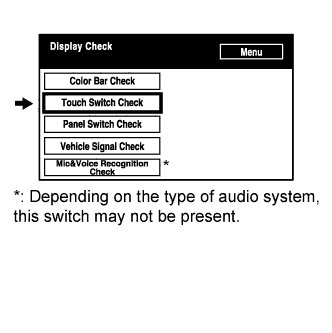 |
Select "Touch Switch Check" from the "Display Check" screen.
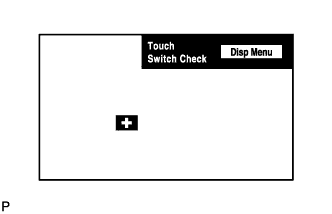 |
Touch the display anywhere in the open area to perform the check when the "Touch Switch Check" screen is displayed.
| PANEL SWITCH CHECK |
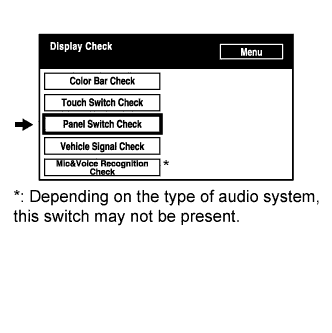 |
Select "Panel Switch Check" from the "Display Check" screen.
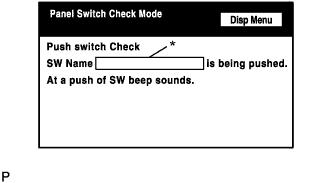 |
Operate each switch and check that the switch name and condition are correctly displayed.
| Display | Contents |
| Pressed switch name/* |
|
| VEHICLE SIGNAL CHECK |
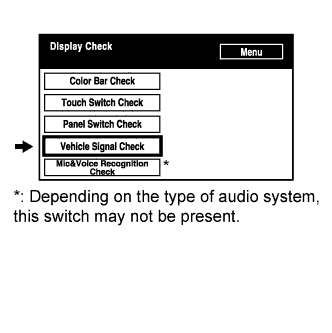 |
Select "Vehicle Signal Check" from the "Display Check" screen.
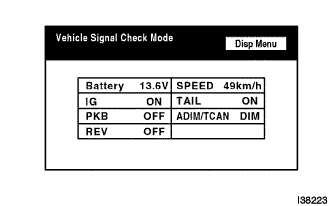 |
When the "Vehicle Signal Check Mode" screen is displayed, check all the vehicle signal conditions.
| MIC & VOICE RECOGNITION CHECK |
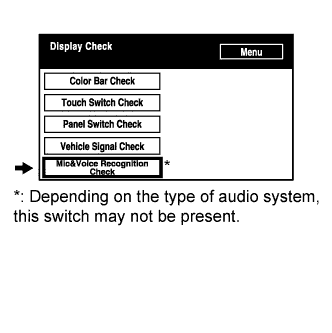 |
Select "Mic & Voice Recognition Check" on the "Display Check" screen to display the "MICROPHONE & VOICE RECOGNITION CHECK" screen.
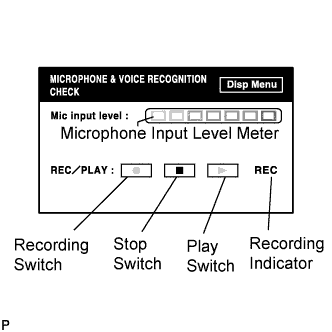 |
When a voice is input into the microphone, check that the microphone input level meter changes according to the input voice.
Push the recording switch and perform voice recording.
Check that the recording indicator remains on while recording and that the recorded voice is played normally.