NAVIGATION / MULTI INFO DISPLAY NAVIGATION SYSTEM Display does not Dim when Light Control Switch is Turned ON
PROCEDURE
Display the "Display" screen.
Turn the light control switch to the tail or head position.
Check if "Day Mode" on the display adjustment screen is on.
- OK:
"Day Mode" setting is off
OK
NG
Enter the "Vehicle Signal Check Mode" screen. [Refer to Check Vehicle Signal in Operation Check (See page Audio / Visual / Telematics>NAVIGATION / MULTI INFO DISPLAY>NAVIGATION SYSTEM>OPERATION CHECK)]
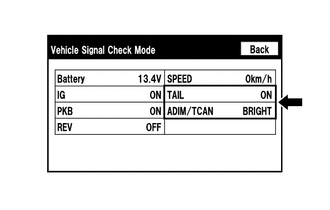
Check that the display for "TAIL" changes between ON and OFF according to the light control switch operation.
- OK:
Light Control Switch Display Tail or head ON Off OFF
- HINT:
-
This display is updated once per second. As a result, it is normal for the display to lag behind the actual switch operation.
Check that the display for "ADIM/TCAN" changes between DIM and BRIGHT according to the light control switch operation.
- OK:
Light Control Switch Display Tail or head DIM Off BRIGHT
OK
NG
(See pageAudio / Visual / Telematics>NAVIGATION / MULTI INFO DISPLAY>NAVIGATION SYSTEM>PROBLEM SYMPTOMS TABLE)