Voice is not Recognized
Circuit diagnosis
INSPECTION PROCEDURE
| 1. CHECK NAVIGATION SETTING |

Enter the "Menu" screen by pressing the "MENU" switch.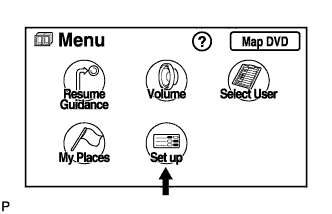

Select "Set up".
Check that "Voice Recognition Guidance" is not OFF.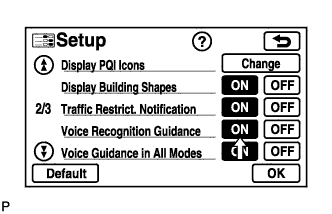
- OK:
- Voice Recognition Guidance is not OFF.
|
|
||||

| OK | |
 |
| 2. CHECK MAP DISC |
Check that the map disc is not deformed or cracked.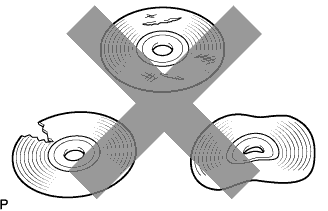
- OK:
- No deformations or cracks on map disc.
|
|
||||
| OK | |
|
| 3. CHECK MAP DISC |
Check for dirt on the map disc surface.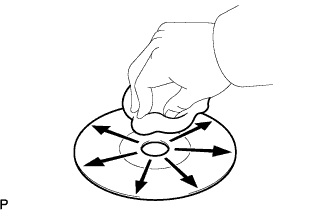
- OK:
- No dirt is on the map disc surface.
- NOTICE:
- Do not use a conventional record cleaner or anti-static preservative.
- HINT:
- If the disc is dirty, clean the disc by wiping the disc surface radially with a soft cloth.
|
|
||||
| OK | |
|
| 4. CHECK MICROPHONE (NAVIGATION CHECK MODE) |
Enter the "MICROPHONE & VOICE RECOGNITION CHECK" mode (Click here).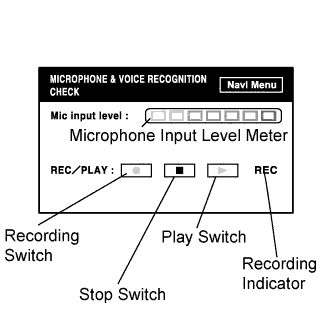
When voice is input into the microphone, check that the microphone input level meter changes according to the input voice.
Push the recording switch and perform voice recording.
- HINT:
- Voice can be recorded up to 5 seconds.
Check that the recording indicator remains on while recording and that the recorded voice is played normally without noise or distortion.
- OK:
- All check results are normal.
|
|
||||
| NG | |
|
| 5. CHECK MICROPHONE (DISPLAY CHECK MODE) |
Enter the "MICROPHONE & VOICE RECOGNITION CHECK" mode (Click here).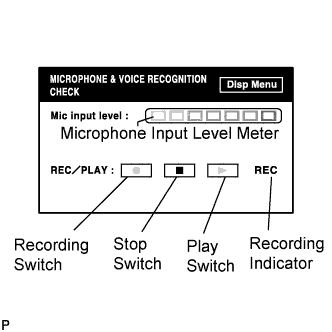
When voice is input into the microphone, check that the microphone input level meter changes according to the input voice.
Push the recording switch and perform voice recording.
- HINT:
- Voice can be recorded up to 5 seconds.
Check that the recording indicator remains on while recording and that the recorded voice is played normally without noise or distortion.
- OK:
- All check results are normal.
|
|
||||
| OK | ||
 |
||
| ||